|
| |
Sections, Section Breaks, Page Numbering, Columns, Headers and Footers,
and Watermarks in Microsoft Word
Word 2007-2024 (365) (for Word 97-2003 click
here)
Introduction
Sections are the Word feature that controls page number formatting,
Headers and footers, orientation (portrait/landscape), margins and columns.
Watermarks are also, to some extent, a part of Sections.If you are having problems or questions with one of these, you need to know
more about Sections in Word.
This chapter is not about the "Repeating Section
Content Control" available beginning with Word 2013, which has nothing to do
with Word Sections.
What You Will Learn
After completing this lesson, you will be able to:
Additional Written Resources
Note, although many of these resources say they are for a certain
version, the basics of sections, page numbers, and headers and footers is
little changed from Word 97.
 | This chapter for Word 97-2003 |
| Word for Law Firms by Payne
Consulting Group:
|
|
Working
with Sections (or Why Word appears to behave so illogically
when you delete or move a Section break or How to preserve
Section formatting when pasting between documents) by Dave Rado,
MVP |
| Create dictionary-style Headers /
footers describing page contents. Charles Kenyon. |
| How can I get a different
Header - footer on the second page in Microsoft Word?
Charles Kenyon. Includes tips and links on creating letterhead and
letter templates. |
| Headers?
Headings? What is the difference? Charles Kenyon |
| Quick Reference Card for Headers, Footers and Page Numbers - pdf
- Charles Kenyon |
|
Using
Headers and Footers by Suzanne Barnhill, MVP - excellent and
comprehensive web page |
|
Master Headers and footers in long Word 2007 documents by Katherine
Murray, Mary Millhollon, and Beth Melton from
Microsoft Word 2007 Inside Out |
|
Word 2010 Tutorial on Headers and Footers - Microsoft |
|
Chapter 19 on Headers and Footers in
Microsoft Word 2010 Bible
by Herb Tyson, MVP for info on Word 2007 - 2024 |
|
How
to Control Page Numbering in a Word Document by Bill Coan, MVP.
Using Fields for Page Numbering - Much more Control |
|
How to Put a Portrait Page Number on a Landscape Page by Bill Coan,
MVP, Dave Rado, MVP, and Suzanne Barnhill, MVP |
|
Different Margins on the First Page by Suzanne Barnhill, MVP |
| Removing Page
Numbers by Charles Kenyon |
|
The
Straight and Narrow: Using Columns by Suzanne Barnhill, MVP and
Dave Rado, MVP. |
|
Letterhead in Headers - Template that can add itself to QAT |
|
Letterhead
System - download a system for letter forms that can be easily
updated |
|
Letterhead
Textboxes and Styles Tutorial - two-page template download that
demonstrates use of
 | textboxes in Headers and footers to reserve space for preprinted
letterhead |
| Styles that are based on each other and use the style for
following paragraph feature |
| Use of the StyleRef field to insert information from the body of
a letter into the continuation page Headers automatically |
| Insertion of a date
automatically that will not change when you open the document at a
later date (but can be changed manually) |
| See
How can I get a different
Header - footer on the second page in Microsoft Word?
for more on how this tutorial works. |
|
|
Date Fields in Microsoft Word |
|
So You
Want to Write a Book Using Microsoft Word - extensive tutorial by
MVP Daiya Mitchell with overview of
Styles,
Templates and
Sections and the interactions
among these tool/features. Excellent! Not just for those who want to
write books! |
| Using
Columns by Suzanne Barnhill, MVP |
|
How to prevent a
Header/footer from being edited by Bill Coan, MVP |
|
How to set up a document with front matter numbered separately -
2007/2010/2013/2016/2019/2024 by
Suzanne Barnhill, MVP |
|
How to number headings and figures in Appendices by Shawna Kelly |
|
Document Splitter by Greg Maxey - addin to break document into
component documents |
|
Is there an automatic way to create a non-blank, even-numbered page at
the end of a chapter, if the chapter would otherwise end on an odd page?
by John McGhie, MVP |
|
Use Alignment Tab Feature to set tabs relative to margins -
especially valuable for Headers/footers |
| Missing Page Number / Header / Footer Commands - greyed out -
Charles Kenyon |
|
Page x of y in Word 2007-2024 - Charles Kenyon |
|
FileName and Path Add-In - Adds Shortcut Key to insert the FileName
and Path field at Cursor Position |
|
FileName and Path Templates - .dotx and .dot files with filename and
path fields in all three footers |
|
Different Page Numbering in Header and Footer demonstration - .docx
and .doc files with page numbers by document in Header and by Section in
footer. |
|
Add the
catchwords from the top of the following page to the footer by
Graham Mayor, MVP |
| Add
Page X of
Y Building Blocks for Headers and Footers to Ribbon Versions of Word |
|
Watermarks in Word - Microsoft Support 2021 |
|
How to Create and Save Your Own Custom Watermark by legal office
guru
Deborah Savadra (video) |
|
Build Reusable Headers and Footers in Word by legal office
guru
Deborah Savadra (video) |
|
Conditional Headers and Footers (Advanced) by Greg Maxey, MVP |
|
Microsoft Word 2010 Bible by Herb Tyson, MVP |
|
Shifting Gutter Position to Right Using Shapes in the Headers or Using
Mirrored Margins -
Answers page |
  
(this guide table of contents) ------- (MS
Word New Users FAQ)
This chapter last edited by Charles Kenyon on
Friday 10 April 2026
.
Preliminary note: While this Chapter is
based on the
Sections chapter of the Legal Users Guide for Microsoft Word, that chapter was written for Word 2002.
This
chapter has extensive changes to account for the Ribbon user interface.
Those changes/revisions have not undergone any kind of peer review other
than user comments. It
remains a work in progress.
Using Sections in Word 2007, Word 2010,
Word 2013, 2016, 2019, 2021 and
Word 2024 / Word 365
Word uses Section breaks to specify parts of a document that have
different page orientation, columns, or Headers and footers.
Section
breaks allow the user to specify where the different formatting will begin
and end.
You would want to use Section breaks in the following circumstances:
| Different Headers and footers. If the document you are
working on needs to have different Headers and footers on various pages,
you can use Section breaks to achieve this.
Note, using the StyleRef
Field in your Headers and footers will make the
need for changes less than you might anticipate. |
| Different page numbering schemes. If you are working in a document
where the Table of Contents needs lower case Roman numerals, the
contract needs Arabic numerals, and the Appendices need alphabetic
numerals, you can achieve all of these with Section breaks.
See
How to set up a document with front matter by Suzanne Barnhill for a
full discussion. |
| Restart Page numbering. You can restart page numbering
anywhere in a document by inserting a section break and using the
Format Page Numbers dialog. |
| Different paper sizes. If you want a document to contain one
legal-sized page and the rest letter-sized pages, you'll need a Section break
between the pages. |
| Different margins. Be sure to
distinguish Margins
from Paragraph Indents.
If the first page of a letter needs a
two-inch margin, and the following pages need a different margin, you
should not use a Section break in the document. A
Section break is not appropriate for this purpose. You can
use a different first-page Header to
mimic a different margin without
inserting a Section break. You may want different margins in different
parts of your document for other purposes, though. A Section break is
appropriate in those instances. Note also that if you want to inset text
on a page, you want to change the paragraph indents, not the margins. |
| Different Orientation. If you need to mix pages that have a
portrait orientation with those that have a landscape orientation. |
| Columns. You can use Word's newspaper column feature in the
middle of a page, and place Section breaks before and after the multiple
columns. If you have text prepared and put it into a column format, word
will automatically put in the Section breaks. Note that for many
purposes, you would want to
use a Table rather than the Columns feature. |
| Document protection. You can apply different protection
levels to different Sections in Word. This lets you allow editing in
some Sections and not others. This can also be done using the Group
Content Control in Ribbon versions of Word. |
| Restart Footnote/Endnote numbering. This numbering can be
restarted with a new Section. Endnotes can be at the end of a Section
rather than at the end of the document. |
| Start Section on Odd-Numbered Page (or Even-Numbered Page).
You can tell Word to start a section on an Odd- or Even-numbered page.
This is especially helpful for documents that will be printed duplex. |
| Line Numbering is a section property (although you can turn
it off for individual lines) - see Section 3 in the image below |
| (Word 2013 and later) Interrupt Collapsible Headings -
not necessarily the best use for a section break. It works, though. |
When you do NOT want or at least need a Section Break
Section breaks are very useful but they do make documents a bit more
complex. This can cause formatting problems that are hard to spot. See
Troubleshooting below for examples.
They should not be used when you do not need to do so.
Here is an excellent summary image on some the formatting that sections
control:
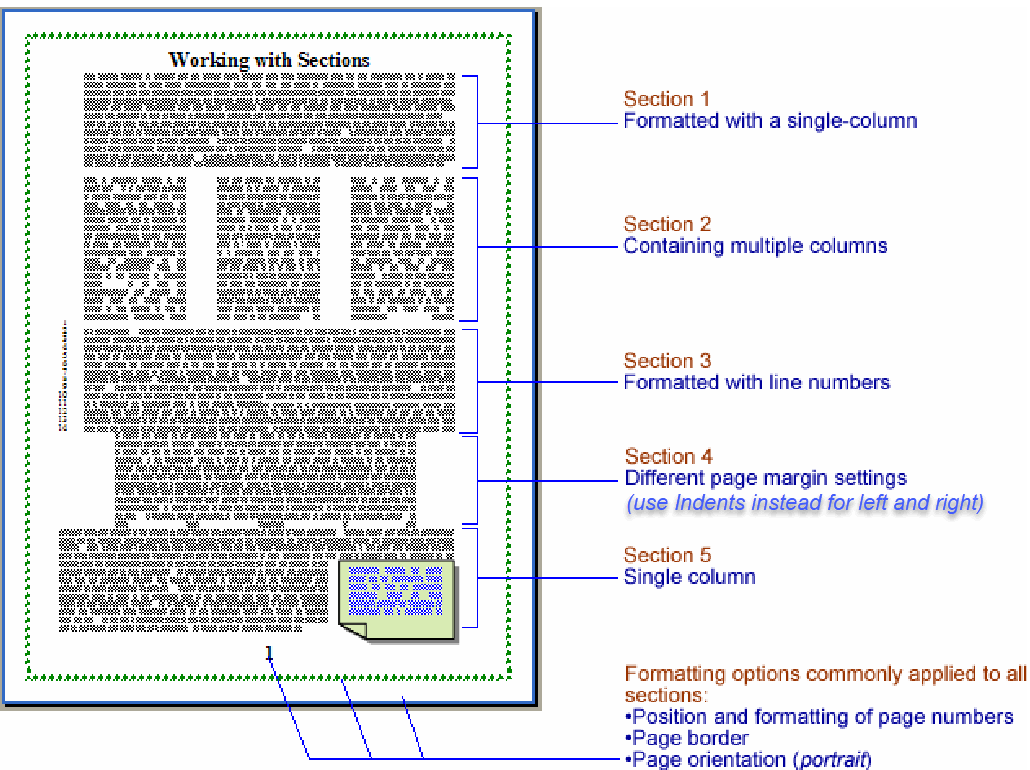
Here is
John McGhie's analysis of what a Section Break, in
Word, is:
| A Section Break is not just a
“page
break”,
it is a binary container that stores several
hundred properties in multiple tables. The
largest Section Break is the
“Default”
Section Break. You will never see one. The
default Section Break hides in the very last
paragraph mark of a document. Because it is
absolutely essential to the document (without
it, the file is just a stream of bytes, not a
document) Word maintains the contents itself and
hides it from you and me. |
That was for the .doc format. The .docx
format is better, but each section break still carries a
great amount of formatting, much more than is obvious
from looking at the document.
How to view a Section Break
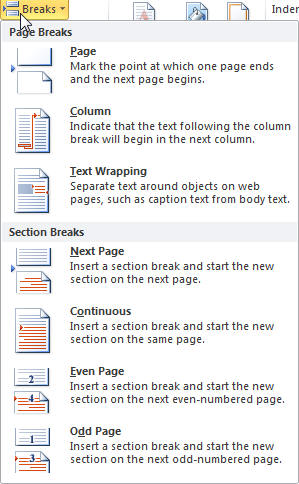
Word 2007-2024 put the controls for Section breaks on the Page Layout
tab under "Breaks."
You can see the Section breaks in your document in many views, but
in draft view they are easiest to recognize. Once you insert the
Section break
a double dotted line appears from one side of your document to the other.
You can also view them in Print Layout view using the Show All button
on the Home tab.
 However, in that view they may disappear or be difficult to see if at
the end of a paragraph that extends close to the right margin.
However, in that view they may disappear or be difficult to see if at
the end of a paragraph that extends close to the right margin.
Practice: Inserting a Section break (Word 2007-2024)
- Open a blank document.
- Change your document view to Draft.
- Type the following: Title Page.
- Now insert a new page Section break: Page Layout (tab) > Break
(right side of page setup group).
- Choose Next Page Section Break.
- Type Table of Contents.
- Insert a new page Section break: Page Layout (tab) > Break (right
side of page setup group).
- Choose Next Page Section Break.
- Type Main document.
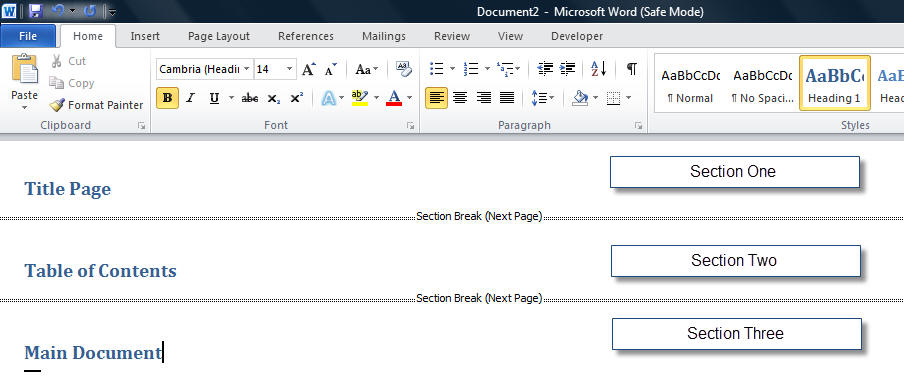
View of exercise document in Word 2010. (2007 will have
the Pizza button
 instead of the File tab) instead of the File tab)
View your document in Print Layout. You now have three Sections.
Switch between Draft and Page Layout views in this document to see how the
Section break appearance
differs. (We will be using this document in the next exercise.) Note:
To make it easier to see the example, I applied the Heading 1
style to each of the lines.
Change Page Formatting in a Specific Section
To better understand how Sections work, think of your document as a
book with different chapters, and each chapter starts with page number
one.
In the last exercise we created a document with three separate
Sections. We are now able to apply unique formatting to each Section of
the document. The exercise that follows will help you change the margins
and the page layout in the document using Section breaks.
Practice: Change Page Formats in Sections
- Use the document you created in the last exercise.
- Press CTRL+END to move to the end of your document. You should be in
Section 3.
- Choose Page Layout (tab) >click Orientation.
- In the Orientation area, select Landscape.
- By default, this change will apply only to the Section you are in.
- The last page should now be landscape and the rest of the
document should still be portrait.
- Press CTRL+HOME to go to the top of the document.
- Choose Page Layout (tab) and click on the Page setup dialog (arrow
in bottom right corner of group)
- Click on the Layout tab of this
dialog box
- In the center under "Page" is a drop-down for Vertical
Alignment
- In this Vertical Alignment Section, select Center from the drop-down
list.
- Click OK. Your "TITLE PAGE" text should now be centered vertically.
- Try changing margins in a specific Section. (Page Layout tab)
Start a Section on an Odd-Numbered- (or
Even-Numbered-) Page
Section breaks are often used to begin a chapter in a larger
document. Generally one wants chapters to start on odd-numbered pages.
(Rarely, on an even-numbered page.)
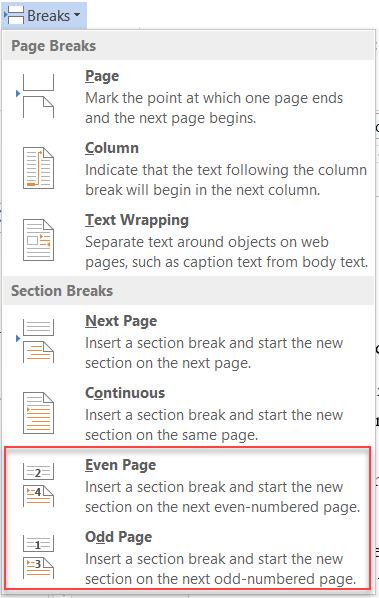
An odd-page section break inserts a section break with the
first page being an odd-numbered page according to the
formatted page number.
When an odd-page section break is inserted, Word will skip to the
next odd-numbered page if necessary to start on an odd-number. On screen
it just looks like a page number was skipped. When the document is
printed (or in a pdf) a blank page with no header or footer will be
inserted but count in the page numbering. No page number appears on the
inserted page.
An even-page section break inserts a section break with the
first page being an even-numbered page according to the
formatted page number.
When an even-page section break is inserted, Word will skip to the
next even-numbered page if necessary to start on an even-number. On
screen it just looks like a page number was skipped. When the document
is printed (or in a pdf) a blank page with no header or footer will be
inserted but count in the page numbering. No page number appears on the
inserted page.
If you need the headers/footers/page numbers to appear, see
Is there an automatic way to create a non-blank, even-numbered page at
the end of a chapter, if the chapter would otherwise end on an odd page?
by John McGhie, MVP.
These section breaks are often used with
different odd and even headers/footers and
mirrored margins.
A Header or footer is text or other information such as graphics that
is stored at the top or bottom of the page throughout your document. You
can use the same Header and footer throughout a document or change the
Header and footer for part of the document. For example, you can use your
corporate logo in the first-page Header, and then include the document's
file name in the Header for subsequent pages.
Word headers are sometimes called Running Heads. The various Header/footer settings can be confusing. This
recap may help you sort
things out. See also:
Using
Headers and Footers by Suzanne Barnhill, MVP -
an excellent and
comprehensive web page just on Headers and footers. Word 2007-2024 put the controls for the
Headers and Footers under
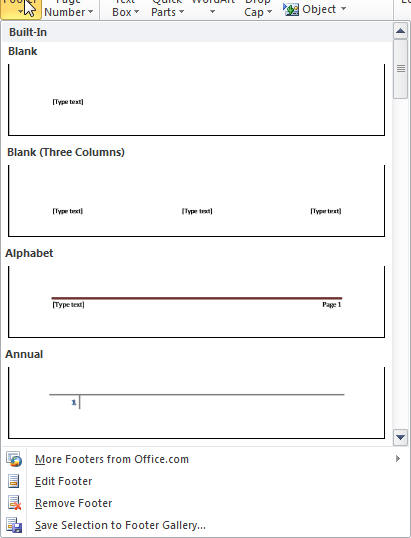
the Insert tab. Before using the new Headers/footers in the
galleries, you may want to read this
thread about some frustrating problems. You can still create
your own Headerlfooters by choosing "Edit."
Quick Reference Card for Headers, Footers and Page Numbers

Insert tab in Word 2007
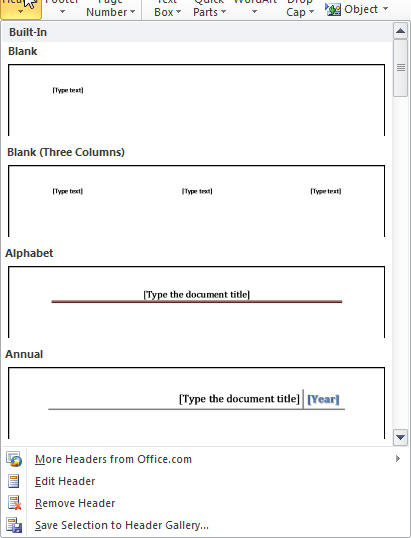 
Header gallery
Footer Gallery
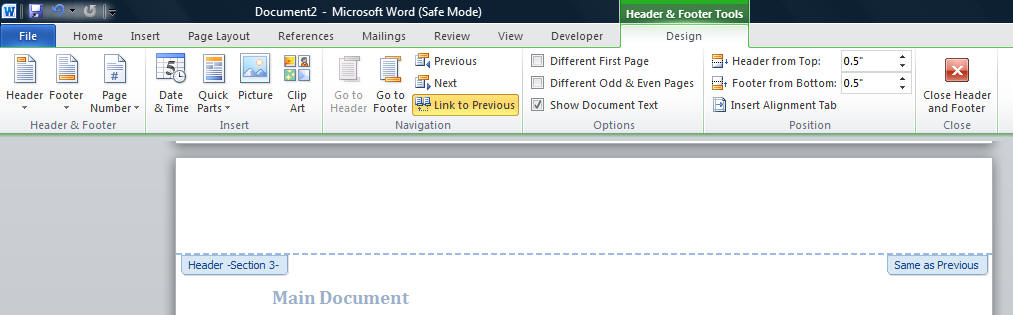
View of the Header and Footer Tools when in edit Header
mode
CK Note: If you Edit the Header or Footer
rather than insert one of the Building Blocks the formatting starts with a
blank area using the
Header and Footer paragraph styles. For some reason, the
Building Block Headers and footers directly format rather than use these styles. The
basic style has tab settings for a Center tab at 3.25" and a Right tab at
6.5". These are based on 1" margins. The Building Block Headers
and footers tend to use Center and Right justifications rather than the
tab settings. You can easily view these settings by clicking the Ruler
box under the View tab.
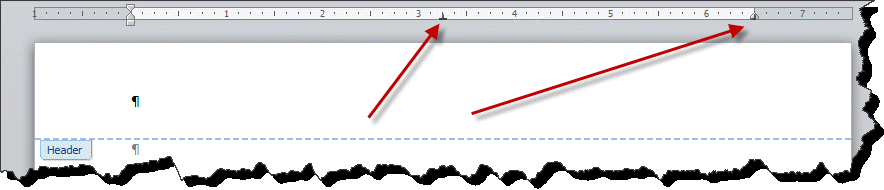
If you want to change the appearance of all of the Headers and
footers in a document, modify the Header and Footer Styles. Your editor
tends to have Headers and footers extend outside the page margins by
half an inch and be in Italic using a different font. I use sanserif
fonts for Headers and footers and serif fonts for body text. This is
intended to emphasize that the Headers and footers are outside of the
body, a textual frame for the page. It is intended that they provide
information without interrupting the reader's flow from page to page.
This advice to modify the style assumes that the Header/Footer is
using the style. Some of the building block Headers and footers do not
use these styles. You can apply the styles but that will likely change
more of the formatting than just the tab settings.
Practice: Insert a Header and Footer
- Choose Insert (tab) > Header.
- Pick the Edit Header choice.
- Your insertion point should be in the Header
- Press Ctrl+R to
align to
the right side of the Header.
- Type DRAFT Rough Outline.
- Click the Go to Footer button to move to the
footer.
- By default in the Footer
style there are already Center and Right Tabs set.
- Press TAB once to move to the center of the Footer.
- Click the Page Number button and pick the "Current Position" option
- Plain Number.
 |
Note If you want to add the word "Page" or
dashes on either side of the number, you can type the information
before inserting the page number. |
- Press TAB once to move to the right side of the Footer.
- Click the Date & Time button to insert the date. You can select a
date format.
 |
Warning If you check the Update Automatically will insert an
updating date that will change to the current date each time you
print. (In previous versions this was the default.) See
Using Date Fields in Microsoft Word
|
- Click Close Header & Footer on the Header and Footer tools bar.
- Switch to Print Layout to view your newly added Header and Footer.
Space on the page of Headers and Footers
The page layout settings reserve room for headers and footers. Even
if there is no header or footer, that reserved space will not be filled
by the body text. However, if you put more in a header or footer than
the space reserved, the body text will not overwrite it. The header or
footer will be allowed that space. This includes space-after or
space-before formatting of the line closest to the body text.
While one normally thinks of the header as being the top of the page
and the footer as being the bottom of the page, a header or footer can
place text anywhere on a page. If it is not continuous text, a textbox
or frame can hold text anywhere on the page but still be in the
header/footer layer of the document.
Marginal page numbering is done with a Page field inside a shape or a
frame. You can create false left and right margins by putting a shape in
the header-footer layer with no border. Text in the body will wrap
around it. See my
Letterhead Textboxes and Styles tutorial for examples and drawbacks.
|
Headers and Footers in Print Layout.
Headers and Footers will appear faded or gray in "Print Layout"
view.
They will print with full strength colors.
If instead of seeing a Header or Footer you see a thin gray line
between pages and it looks like you have no top or bottom margins,
you are set to not view space between pages.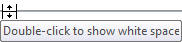
If you put your mouse pointer over that line it will change as
shown to the right.
If you click once, you'll see the tool-tip shown here.
Double-clicking will show you the Headers and footers with space
between pages as shown below:
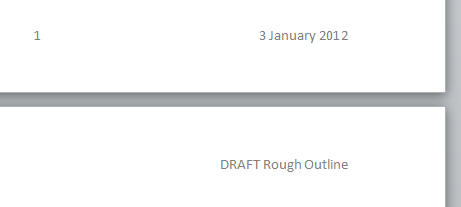
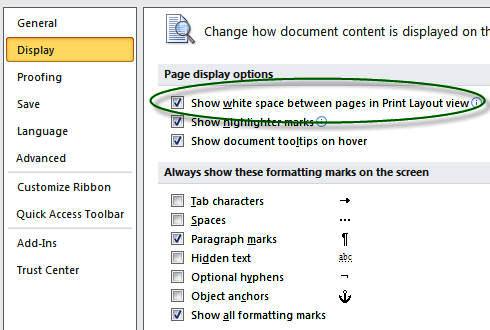
This is what you will usually want when in Print Layout.
You can also choose this under Options > Display (under the File
tab in Word 2010-2024 and under the Office Button
in Word 2007.
(below)
|
|
AutoText in the
Header/Footer Toolbar.
You can access Quick Parts including AutoText in the Header
Footer Tools bar. Unfortunately, unlike in previous versions, it is
not set up well for finding what you want. If you know the name of
an entry, you can type that name and press the F3 key to insert it. |
There are times when you do not want a header/footer or page number on the first page
of your document. In WordPerfect, this was called Suppress. In Word, the
feature is called Different First Page. This means you are still able to
put information into the Header or Footer but it will not affect the rest
of the Headers and Footers in the document.
Word 2007 - 2024 put the controls for
page numbering under the Insert tab. Different options are presented and you
can also get a dialog box using the Format Page Numbers button. The
Different First Page option is on the Header & Footer Tools context tab which comes
up when a Header or footer is being edited. It is on that you'll find the
options for "Different First Page" and "Different Even and Odd."
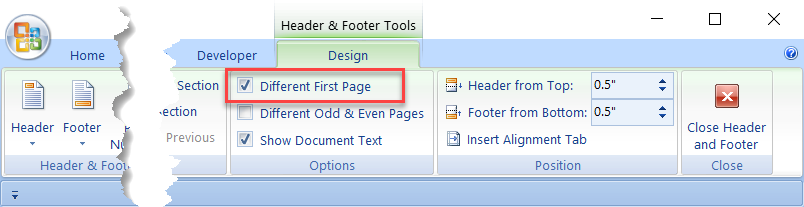
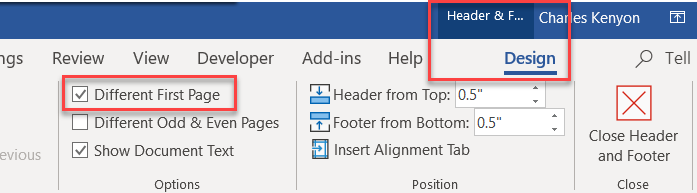
Note, the Different First Page option applies separately for each
Section (unlike the Different Odd and Even option). In any section it
will apply to both headers and footers.
Also, note that if a new Section is started following or in a Section
that already set up to have a Different First Page, that option will be
continued in the new Section. You can change this in the new section.
This can be disconcerting if Word inserts a section break for you when
you change margins or columns within a page.
Practice: Turn on Different First Page
- Open the document from the last exercise.
- Double-click the Header in your document. This will access the
Header and footer area and activate the Header and Footer Tools
contextual tab.
(You can also, on the Insert tab, under header or footer select the
option to Edit.)

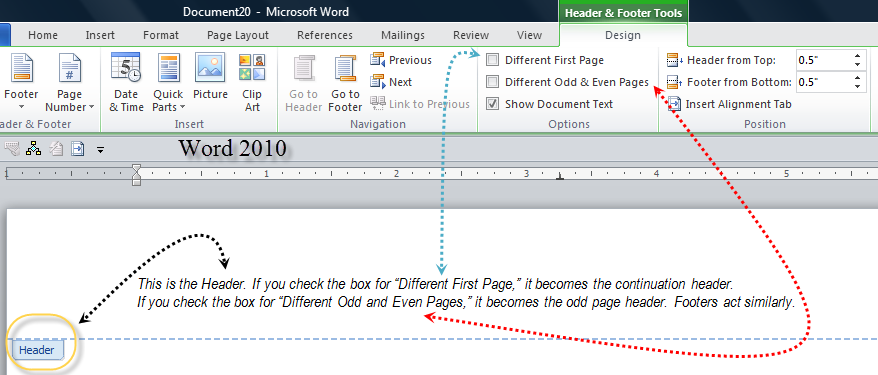
- Check Different First Page.
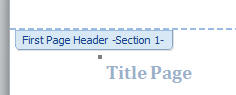
- Notice the Header area now says "First Page Header -Section 1-".
 - Click on the Close
Header and Footer button.
- Save this document.
- Go to the next page (Section). Note that the Header (not on
Section
1) shows in Section 2 (and 3).
- Double-click in the Header and note that the designation there is
"Header -Section 2-"
- On the right side it still says "Link to Previous." If you were to
select different First Page for this Section as well, it would give you
the same First Page Header as the previous Section (blank).
- Note, if there is only one Section, the Section label does not
appear.
NOTE: There are times when you want the same footer but
different or no header for the first page of your section. The Different
First Page setting is for both, it does not distinguish between the
header and footer.
In this case it is often easiest to simply copy the text from one footer
and paste in the other. If you do this, you can end up with an extra
paragraph (likely blank). Delete that paragraph if you want the two to
match.
Different Even and Odd Pages
(Headers/Footers/Page Numbers)
The Different Even and Odd option allows you to format your Headers and
footers differently. For example, you may want the page numbers on the odd
pages to be aligned to the right and the page numbers on the even pages to
be aligned to the left when you are printing double sided documents. This
option is just under the Different First Page option.
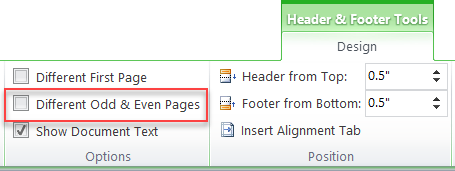 Note: the Different Odd and Even option applies to the entire
document, not just to one Section. This means that if in some Sections
you want the same Header/footer you will have to produce it twice, once
for odd pages, and once for even pages. When you select this option,
your current headers and footers become the odd-page-header and footers
and the even-page headers and footers are displayed on even-numbered
pages. In some cases, it is desirable
to not use different even-and-odd settings. In such a case you can use
the following fields:
| {IF{=MOD({PAGE},2)}= 1 {PAGE}} - odd numbers |
| {IF{=MOD({PAGE},2)}= 0 {PAGE}} - even numbers |
Here the second {PAGE} field in each is what you want to appear
on that page. As written, these are for page
numbers, but could be used for entire headers and footers as
shown below.
(Field codes by Paul Edstein)
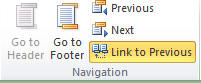 Word's default is to connect all the
Headers in the document and all
the footers in the document so they are all the same. It does this by
using the Link to Previous command. It is important to turn OFF the
Link to Previous option FIRST before you make any other changes. This will
prevent the previous Section from being changed as well.
 |
Tip It is usually better to start at the top
of your document when working with Headers and
Footers. |
How many Sections do you need? If you are inserting a
Section break just to change the text in your Header / footer, look into use
of the
StyleRef field with Word's built-in heading styles. This lets you change
the content of your Header / footer without making any change in the Header
/ footer. The StyleRef field can reflect the content of the latest
heading or other style and change each time you format something new with
that Style.
Note each Section in Word can have up to three Headers and
three footers. The choices of different first page, different odd and even
apply to both Headers and footers for each Section. The setting for link
with previous is independent for each of these, that is, the first
page Header can be linked to previous while the first-page footer is not and
neither setting has any effect on the settings for the odd or even page
Headers and footers.
Practice: Creating first page and continuation
page Headers/Footers in a Template with only one page
When a template is created for a report or letterhead you will often
want a different first-page Header/footer and also want a different
continuation page Header/footer. One obvious way is to insert a
temporary page break. However, you can actually create both in a single
page.
- Choose Insert (tab) > Header.
- Pick the Edit Header choice.
- Your insertion point should be in the blank Header (Footer) with
default tab settings
-
Type some text, i.e. "This is the first Header I typed" or "This is
the continuation page Header."
- Click on the option button for
"different first page" and what you just typed disappears!
- The
label changes from "Header" to "First Page Header"
- You can now
type your Header to appear on the first page.
- If later the
document has more than one page, your continuation Header
-
REMINDER: If you have multiple Sections in a document and a
Section's Header/footer is set for link to previous, that will
continue not only the main Header but any different first page and
even/odd page Headers footers. This is true even if you do not see
them. Remember, the different-first-page setting can be set for
each Section. The different even and odd setting is for the entire
document.
Have a Header and/or Footer Appear Only on the
Last Page or on Certain Pages Without Using a Section Break
Using a conditional
IF Field you can have a header and/or footer appear only on the last
page of a document or on certain pages. This is done without using a
Section break.
The field would look something like this:
{ IF { PAGE } = { NUMPAGES } "Content
you want in the header or footer only the last page" "Content
you want in the header or footer on every page but the last page" }
{ IF { PAGE } < { NUMPAGES } "Content
you want in the header or footer on all but the last page" "Content
you want in the header or footer on only the last page" }
If you want the header or footer to appear only on page 5 of a
document it would look like this:
{ IF { PAGE } = "5" "Content you want in the
header or footer on page 5 only" "Content you want in the header
or footer all pages except page 5" }
The field delimiters (braces) can only be inserted using Ctrl+F9,
not typed.
Thanks to MVPs
Suzanne Barnhill,
Bill Coan,
Greg Maxey and
Paul Edstein for help understanding this.
For even more, see
Condition Headers and Footers by Greg Maxey.
This is handled under the Page Layout Tab using the Orientation Button.
This switches the entire document to a different orientation. If you
want both types, you would use the Page Setup dialog. You can launch
that using the little arrow on the bottom-right of the Page Setup Group
on the Page Layout Tab. Since the page orientation is a Section property, if you have both
portrait and landscape pages in one document, you must have multiple
Sections.
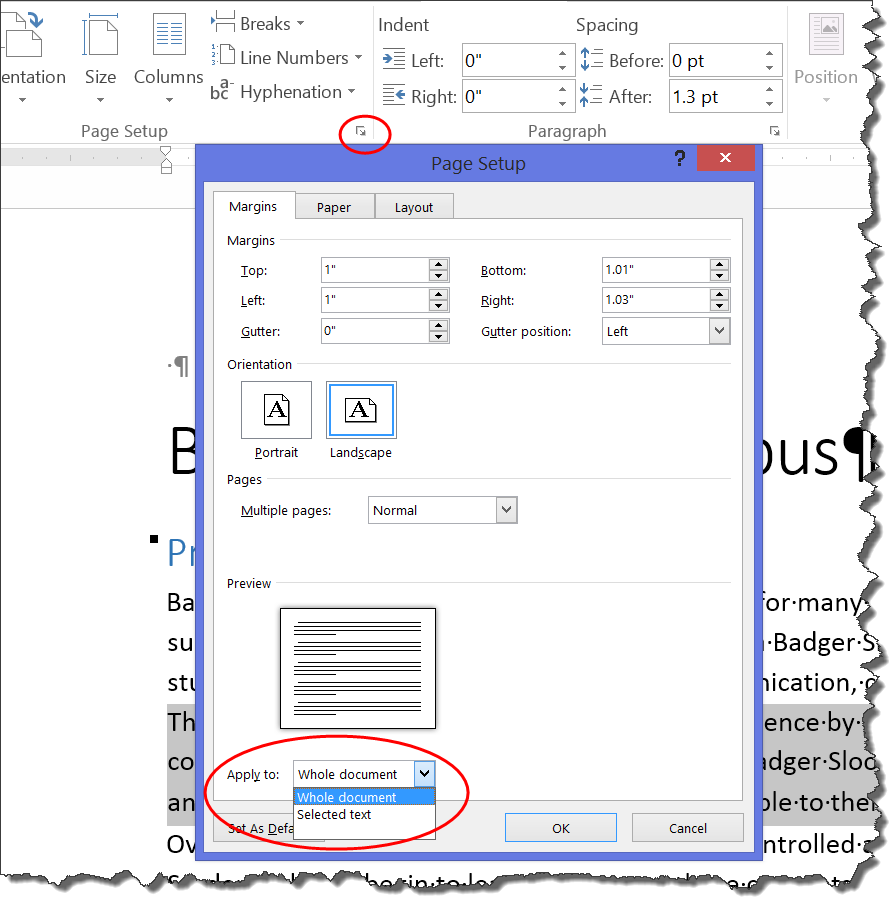
If you use the page setup dialog, you can have an
orientation change automatically insert a new page Section break. If you
have selected text, the "Apply to:" dropdown allows you to change it
only for selected text. (This inserts Section breaks before and after
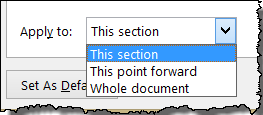
the selection.) If no text is selected, the choices will be "Whole
document" and "This point forward." If you already have
multiple Sections in your document, an additional choice will appear for
"This Section."
Again, if you simply use the Orientation Button, the
orientation is changed for the entire document. If the document already
has multiple Sections, the button will apply your choice to the current
Section.
Laying Out Portrait and Landscape orientation
Headers/Footers in one document.
Generally Headers and footers are designed to distribute information
across the top or bottom of a page, giving the reader a lot of
information in a small space. Some information is on the left side, some
in the center, and some on the right side of the page.
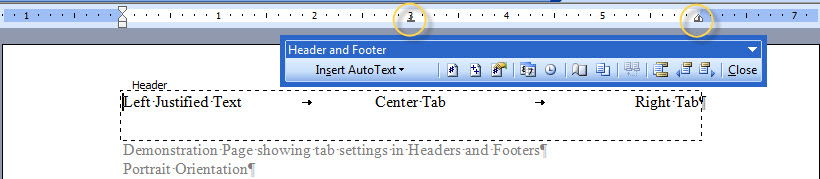
In versions of Word before Word 2007, this was done using tab settings in
the Header and footer styles. This works well
if all pages in a document are in the same orientation. It does not work
so well when some pages are in portrait, and others in landscape
orientation. The default Header and footer styles have a center and
right tab set for portrait orientation.
Here are screenshots from Word 2003 showing how this works (or
doesn't work).
Portrait Orientation
Landscape Orientation
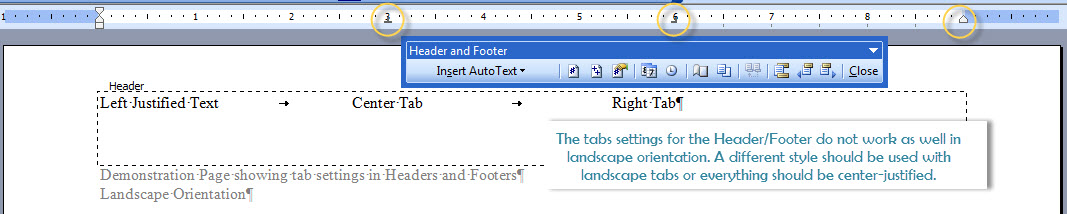
In these earlier versions of Word, different Headers and footers were
needed for each orientation or something different needed to be done to
display the components of the Headers/footers.
Alignment Tabs step in
In Headers and footers beginning with Word 2007 there
are special margin-alignment tabs (left, center and right).These
can be independent of the paragraph or style tab settings.
Use Alignment Tab Feature to set tabs relative to margins Below
are screenshots (Word 2010) from a page set up in both portrait and landscape orientations
showing how these special tabs adapt to the change in orientation.
(You reach this ribbon tab by double-clicking in a Header/footer or by
selecting Edit Header/Edit Footer from the Insert Tab.)
Portrait Orientation
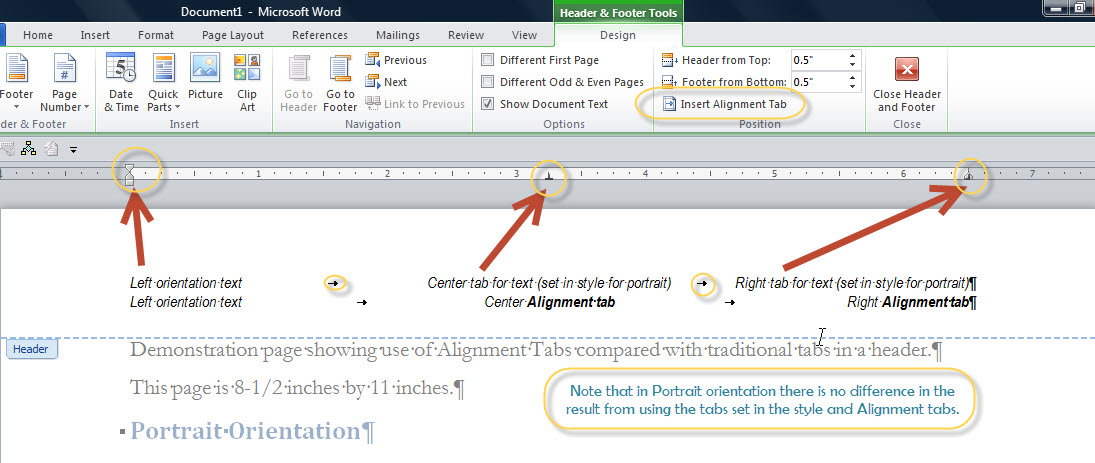 The tab settings shown in the ruler are those for my
Header style.
The Alignment tabs appear to be set the same but are really oriented
to the page margins rather than the tab settings in the style. This
becomes apparent when this Section is switched to Landscape
Orientation. Landscape Orientation
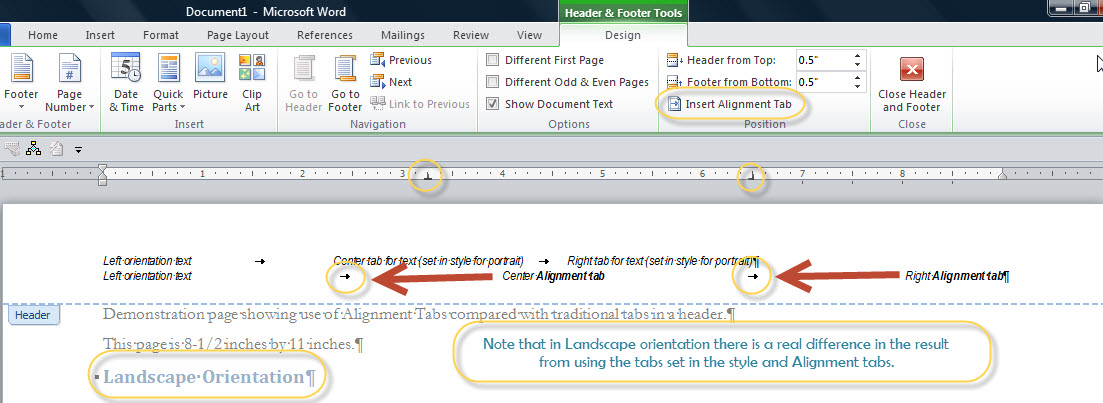
Note: Right click on the screenshot above and select "View Image" to see
full size. Note that the tab settings in the Header style (shown on the ruler)
are the same and the first line using those tabs is unchanged. The
second line though uses the new Alignment Tabs and remains set well
for this page orientation. Remember that by default the alignment tabs are
independent not only of the tab settings but also the indent settings.
In the example shown above the left and right indents were set at the
margins, but they do not need to be. By default, the Alignment Tabs align to the
margins, not the indents.
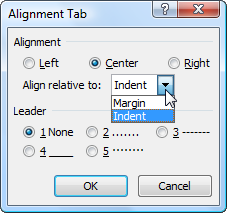 Alignment tabs can be used in the body of a
document, but the control for it is in the Header and footer tools. You
can add this dialog to your Quick Action Toolbar if you need them in the
body. (I don't think you really want to do this, but could be wrong.)
While the default with Alignment Tabs is to set them relative to the
margins, they can also be set relative to the left and right paragraph
indents. My usual Headers and footers have left and right indents
outside the margins to emphasize that they are frames to the page. If I
were using a right-alignment tab, I would want it relative to the indent
so it would line up with the right indent setting. These indents change
with orientation because they are relative to the margins.
Unfortunately, the alignment tab will not go past the right margin! The
right tab can still be set past the right margin and works, but that
will not change with orientation.
You can set alignment tabs relative to paragraph indents. In that case,
they are influenced by paragraph formatting and styles.
Having Portrait-oriented
headers/footers on a Landscape Page
When a page is in landscape mode, the headers and footers are
also in landscape mode.
There are times when the writer wants to have the headers/footers stay
in the same place on the physical page rather than rotate with the page
content.
This portion arose out of a
question asked on the Microsoft Answers site and three solutions
were given.
- Place headers/footers for this section in rotated text boxes
that are actually in the left and right margins of the landscape
page.
How to put a portrait page number on a landscape page by Bill Coan,
Suzanne Barnhill, and Dave Rado,
MVPs
- Where the contents are only one page put them in a Table and
rotate the text in the table. (This requires no section break or
different headers/footers because the page remains in portrait
orientation.)
- Where the landscape contents are only one page, put them in a
Text Box and rotate the textbox. (This also requires no section
break or different headers/footers.)
See
Portrait Headers and Footers in Landscape Section Demonstration.
Visual Techniques for Setting Headers
and Footers Off From Body of Document
In many documents it is important to distinguish headers and footers
from the body of the text. There are four principal ways to do this:
- Provide space between the header and footer and the body of the
text. Space after paragraph setting in the Header style and space
before in the Footer style can be used to accomplish this.
- Use a different font, font style (i.e. Italics) or font size.
- Use borders (bottom for Header style, top for Footer Style)
- Use wider Indents (not margins) in the headers and footers.
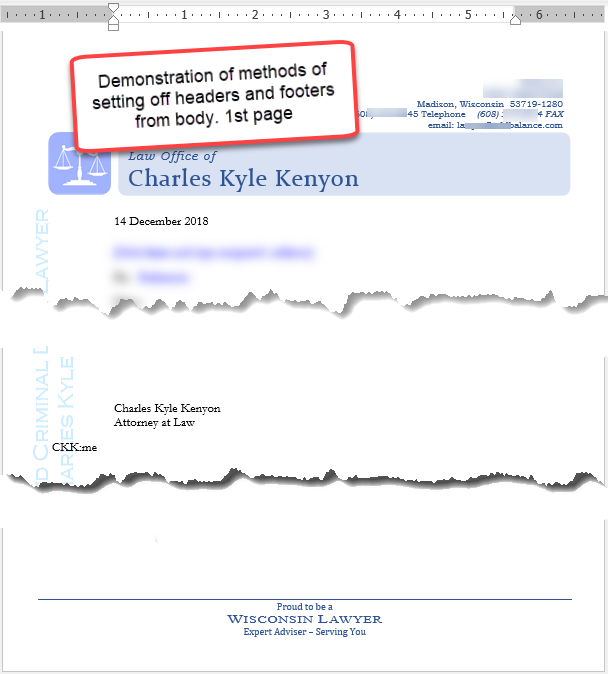
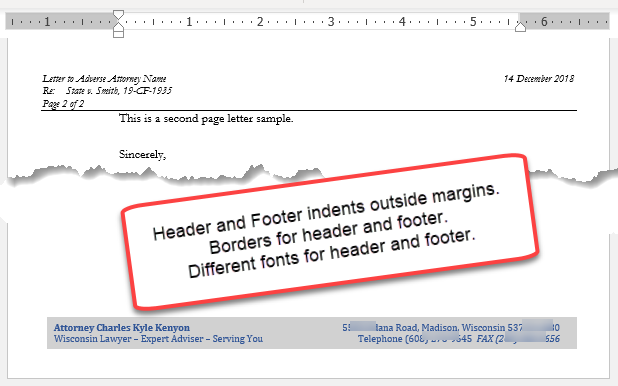
Header and Footer Placement and Space
There are two things the user needs to know about Header and footer
placement and space. The first is that either the Header or footer can
take up the entire page or be anywhere on the page. The second is that
in the page layout dialog the user can set how much space to reserve for
the Header and footer from the edge of the page. Placement
Items in the Header or footer can be anywhere on the page. If they are
graphical elements like a logo, WordArt, a Watermark or a TextBox they
can be floating and marked to appear behind text. If they are set to be
behind text, they will not move text in the body of the document. If
they are in-line with text or set for wrapping, text in the body of the
document (as well as in the Header or footer) will give them space. This
is one way of preparing letterhead templates reserving space for a
sidebar on the first page of preprinted letterhead. See
Letterhead Textboxes and Styles
Tutorial. Space for Headers and Footers So that they do
not run into text and so that text doesn't seem longer on pages without
Headers and footers, space can be reserved for the Header and footer in
the Page Layout dialog. First the general rule is that the running
Headers and footers will use whatever space they need. That means that
if they extend into the body of the document, the text will normally
flow around them. Generally you want a bit more space to distinguish the
Header and footer from the body of the document. This dialog can be
reached by clicking on the dialog launcher in the bottom right corner of
the Page Setup group on the Page Layout Tab. This setting, like most
Header and footer settings, is a Section property. That is, you can have
multiple Sections in a document, but only one setting in a Section.
Note that few printers can print to the edge of the page and that inkjet
printers, in particular, seem to need blank space at the bottom of the
page. See
The
bottoms of pages don't print.
Header and Footer Confusion?
The various Header/footer settings can be confusing. This
recap may help you sort
things out.
|
Page numbers are relatively simple, but the interface can make them seem
complicated. Page numbers in Word are always fields, not manually typed
numbers. We will start by
looking at how to insert them through the Interface's Insert Page Number
functions and then look at how they can be inserted and formatted directly.
Quick Reference Card for Headers, Footers and Page Numbers
Word comes with a number of built-in formats that are stored in
building
blocks. These can be convenient but are not necessary and can cause
confusion. You always have the option of simply directly
inserting a Page field.
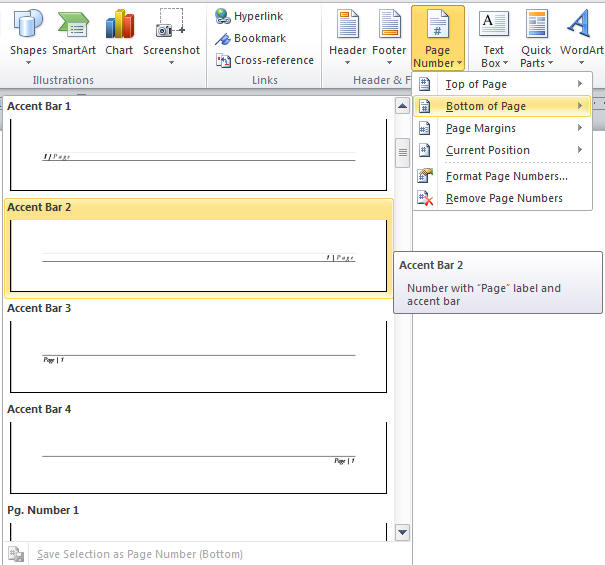
Using these, you
can easily add a page number to your document under the Insert tab. Click on
the Page Number button and you'll get a short menu giving a choice of
positions as well as the option to format or remove page numbers. If you
select one of the positions, you'll get a gallery view of your options
(below). Note that this gallery has a scroll bar.
(Don't see a gallery?)
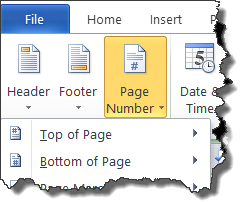 The Page Number button on the left end of the Header and Footer Tools tab
is the same as the one on the Insert tab. Note that all of the positions except
"Current Position" replace any current Header/Footer with the
formatted page number. This includes the numbers in the page
margins which will replace any current Header. If you have multiple headers/footers this command only changes
the currently active header/footer. See
Header/Footer Settings Recap.
Warning about Page
Number Insertion Repeat: Inserting page numbers using the gallery
locations will
replace current Headers or footers. If you already have a Header or
footer and want a page number go into the Header / footer edit mode and
insert a page number at the current position. This will not replace the
Header / footer. You can also insert Page numbers by inserting Headers or
Footers. A supplemental set of building blocks can be downloaded to
handle the Page X of Y construction.
Page X of Y Building Blocks
The Page Number Galleries
(Word 2007 and later) There are four Page Number
Galleries (These are Building Block Galleries.)
| Current Position (these are inserted in document at the
insertion point and can have various formatting) |
| Top of Page (these go at the top of the page by
replacing the current header) |
| Bottom of Page (these go at the bottom the page by
replacing the current footer) |
| Page Margins (These are in frames or textboxes.
Inserting one replaces the current header.) |
You can add your own formatted page numbers to one of
these galleries by using the command at the bottom of the
gallery.
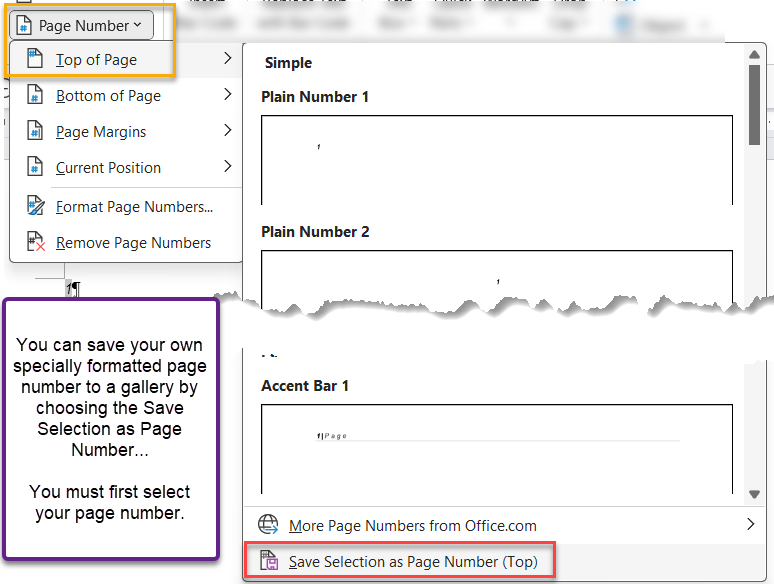
This will bring up a dialog box in which you
can make choices as to Name, description, Gallery, Category,
and Template. See
Saving AutoText and Other Building Blocks for more
direction on making these choices.
|
Page Numbering Fields
Again, page numbers are fields. This is
true no matter how you insert them. If you select a page number and press
Shift+F9 to toggle field codes, you will see { PAGE }, a
very simple field code. A very simple way to insert a basic { PAGE
} field is to press Shift+Alt+P. This is a keyboard
shortcut and inserts the field formatted in the Page Number character
style. If you ever need to insert this manually you also can do
so through the Insert Field dialog. You can access this using Insert > Quick Parts > Field.
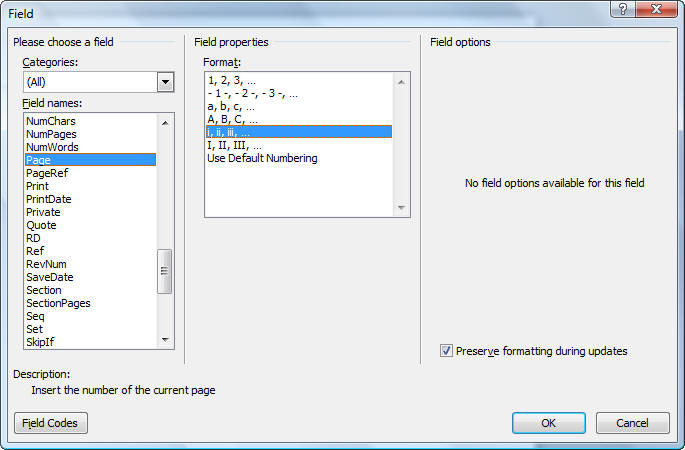 The Insert Field dialog box is shown
above. Using the choices shown
will result in a lower case Roman numeral page number in the current
formatting. The field would look like this:
{ PAGE \* roman \* MERGEFORMAT
} (The
MERGEFORMAT switch is inserted by default. It comes from checking
the preserve formatting box. I usually uncheck that box.) Rather than
use the "\* roman" switch, I recommend using the
Format Page Numbers dialog. That page
number formatting would be reflected in a Table of Contents, while one
with the switch would not. You do not have to
choose the page type when you insert the page number but it is easiest to do
so. Other useful fields are the NumPages and SectionPages fields which give
the total number of pages in the document and Section respectively. (There is
no SectionPage field that would correspond to the Page field.)

You may want to look at the screenshot (above) in full size. Right-click
on it to do this. See
Page Numbering on Greg Maxey's site for information on how to have
both a count of the Section pages and of the Document pages in the same
spot. Another article on formatting page numbers and manipulating them with
calculation fields is Bill Coan's
How to Control the Page Numbering in a Word Document.
See Pagination Fields for
more on inserting different kinds of page number fields (PAGE, NUMPAGES,
Section PAGES and DOCPROPERTY). See
Spell Out Page Numbers for how to create the field codes needed to
do that. (i.e., PAGE TEN) i.e. { PAGE \*CardText \*CAPS }
|
Page X of Y
Page X of Y ( 1 of 3, etc.) construction consists of two basic
fields, the PAGE field and the NUMPAGES field.
Sometimes, the DOCPROPERTY PAGES field is used instead of
NUMPAGES. These
can be inserted using the Insert > Quick Parts > Field method or you
can simply type "page" or "numpages" (without the quotation marks),
select the word and press Ctrl+F9 to make it a field and then
press
F9 to update it. Like Page fields, the NumPages field can be
formatted. For fancy manipulation of these and the companion
SectionPages field, refer to the articles by Bill Coan and Greg
Maxey mentioned above. See also
Page X of Y Add-In.
Format Page Numbers
Page number formatting is best controlled using the Format Page
Numbers dialog. You get access to this dialog from any Insert Page
Numbers menu or control. Word 2007 and later
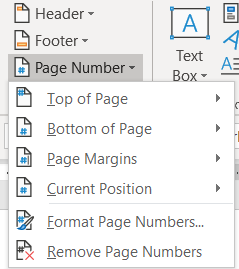
Word 97-2003
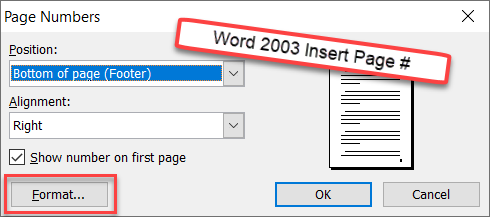 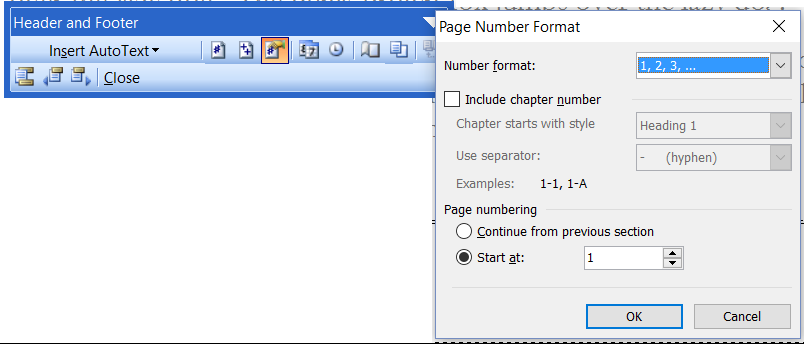 The page number format dialog gives you a lot of control on how your
page numbers appear, not only on the page but also in a
Table
of Contents,
Caption, or
Cross-Reference.
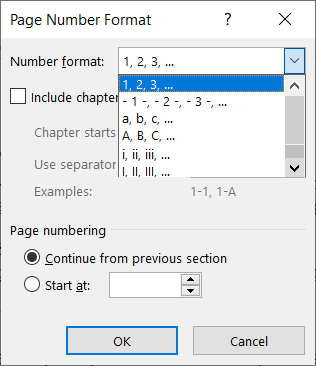
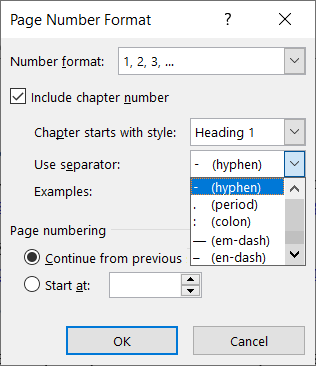
The first choice is for the type of numbering.
This lets you choose two variations, each, from the three basic
formats: Arabic numerals, Roman numerals, or alphabet (letters).
Next is a checkbox that lets you use Chapter numbering.
If you check it, it activates the selection of the (built-in)
heading style which signals the beginning of the chapter.
That Chapter will need to be numbered using
Automatic Numbering. You are also allowed a selection of the
separator to separate the chapter number from the page number.
(Note: both of the drop-down boxes scroll, they actually show fewer
choices at a time.)
You have the option of continuing numbering from the previous section
or restarting numbering for the section at a different number (1).
If you start a new section, the choices made here continue in the
new section by default. This includes the decision to restart
numbering.
Practice: Format Page Numbers - Manual Method 1
You will probably want to understand how to format page numbers. For
example, you may add a Table of Contents to your document and would like
the page numbering of the front matter before the body of your document to be in lowercase Roman numeral format. As long as
your document is divided into Sections, you can have differently formatted
page numbers in each Section of your document.
See
How to set up a document with front matter numbered separately.For more information on using chapter numbering, see
http://wordmvp.com/FAQs/Numbering/ChapterNumber.htm.
For more information on numbering appendixes, see
http://www.ShaunaKelly.com/word/numbering/NumberingAppendixes.html.
It is important to remember that page number formatting
(including restarting page numbers or starting at some page
other than 1) is a Section property. It can be changed with each
new
Section. When you add a new Section, everything continues as is
from the previous Section. You can modify this in the new
Section.
If you restart page numbering in a Section and then add a
Section break for a new Section, the new Section will also
restart page numbering at the same point. If the page numbering
is continuous in a Section, when a new Section is started from
that Section, the new Section will also have continuous page
numbering.
| Create a new blank document.
Save As (your initials) Sections.
(i.e. "ckk Sections.docx" becomes the document name)
- Type
Confidential Employment Agreement
ZZZ Company
January 1, 2012
- Choose Page Layout(tab) > Breaks. From the
Section Breaks area, select Next
Page to insert a Next Page Section break.
- Type Table of Contents and press ENTER.
- Insert a Next Page Section break.
- From the Style drop-down list on the Formatting toolbar, choose Body
Text.
- Type =rand(30) and press ENTER.
- Insert a Next Page Section break.
- Type Appendix: Salary Increases and press ENTER.
- Still on the Page Layout tab choose Orientation and select Landscape.
- Save the document.
- Press CTRL+HOME to get the top of the document.
- Click on the Insert tab. (What follows is manual method 1 to insert
a page number)
- Click on the Footer button and choose Edit Footer. Your cursor
should be in the footer of the first page.
- Notice that it says: Footer
Section 1. We do not want a page number on the first page so leave it
blank.
- Click the Show Next button to jump to the next footer. It should
read: Footer Section 2
- Notice on the right that it says Link to
Previous.
- Click the Link to Previous button in the Ribbon. This disconnects
Section 2 footer
from Section 1 footer.
- On the Page Number button select Format Page Number. The Page Number Format dialog
box opens.
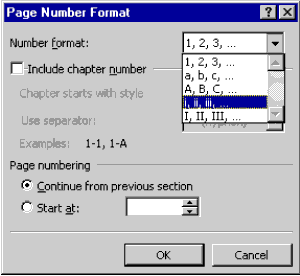
- From the Number format drop-down list, choose lowercase Roman
Numerals.
- Under Page Numbering, select Start at to have the page numbers start
counting from this Section.
- Click OK to return to the footer.
- Click the On the Page Number choose current position.
- Press your left arrow key once to move in front of the page number.
- Press the tab key to move the number to the middle of the footer (By
default, there
is a Center tab set in the footer style.)
- Go back to Edit Footer under Footer button
- Click the Show Next button to jump to the next footer. It should
read: Footer Section 3.
- Turn off Link to Previous using the Link to Previous button on the
Header/Footer
Tools ribbon.
- Click Page Number Format under the Page Number button.
- The number format should already be Arabic numerals; choose Start At and
change the Start At to 1. Click OK.
- Click Show Next to move the cursor to Footer-Section 4.
- Turn off Link to Previous.
- Change the number format to capital letters.
- Click Close on the Header/Footer Tools Ribbon.
- Switch to Print Layout and make sure your page numbers are correct.
|
Practice: Format Page Numbers - Manual Method 2
- If you went through manual method 1, close that document without
saving and reopen it.
- Otherwise, repeat steps one through 11 above.
--
- Click on the Insert tab. (What follows is manual method 2 to insert
a page number)
- Click on the Footer button and choose Edit Footer. Your cursor
should be in the footer of the first page.
- Notice that it says: Footer
Section 1. We do not want a page number on the first page so leave it
blank.
- Click the Show Next button to jump to the next footer. It should
read: Footer Section 2
- Notice on the right that it says Link to
Previous.
- Click the Link to Previous button in the Ribbon. This disconnects
Section 2 footer
from Section 1 footer.
- Press the Tab key to move to the center of the page (Center tab
setting in the footer).
- Type PAGE \@ roman and select what you
just typed.
- Press Ctrl+F9 to put field braces around it: { PAGE \@
roman }.
- Press the F9 key to see your page number: ii
- Select
that and under the Page Number button select Format Page Number.
- Choose to Start At i. (You could have started with a simple PAGE field
and edited its format to Roman numeral as well.)
- Press OK.
- Use the
Show Next button to move to the Section 3 footer.
- Unlink the footer
from the previous Section.
- Select the page number and format it to
start at 1. Note that is already in Arabic number format.
- Click Show Next to move the cursor to Footer-Section 4.
- Turn off Link to Previous.
- Change the number format to capital letters.
- Click Close on the Header/Footer Tools Ribbon.
- Switch to Print Layout and make sure your page numbers are correct.
The above manual methods are important if you want to add page numbers to
already existing footers (or Headers). What follows is the simplest way, but
it will replace existing Headers or footers.
|
Practice: Format Page Numbers - Insert Method
- If you went through manual method 1 or 2, close that document
without saving and reopen it.
- Otherwise, repeat steps one through 11 above.
--
- Click on the Insert tab. (What follows is the Insert Page Number
Method.)
- Click on the Footer button and choose Edit Footer. Your cursor
should be in the footer of the first page.
- Notice that it says: Footer
Section 1. We do not want a page number on the first page so leave it
blank.
- Click the Show Next button to jump to the next footer. It should
read: Footer Section 2
- Notice on the right that it says Link to
Previous.
- Click the Link to Previous button in the Ribbon. This disconnects
Section 2 footer
from Section 1 footer.
- On the Page Number button select: Bottom of
Page - Plain Number 2
- Notice this gives you a number centered in the
bottom of the page.
- Select that number and on the Page Number drop
down select Format Page Number.
- Choose lower-case Roman numerals and
start at i.
- Press OK.
- Use the Show Next button to move to the
Section 3 footer.
- Unlink the footer from the previous Section.
- Select the page number and format it to start at 1. Note that is already
in Arabic number format.
- Click Show Next to move the cursor to Footer-Section 4.
- Turn off Link to Previous.
- Change the number format to capital letters.
- Click Close on the Header/Footer Tools Ribbon.
- Switch to Print Layout and make sure your page numbers are correct.
You can close and delete your practice document.
|
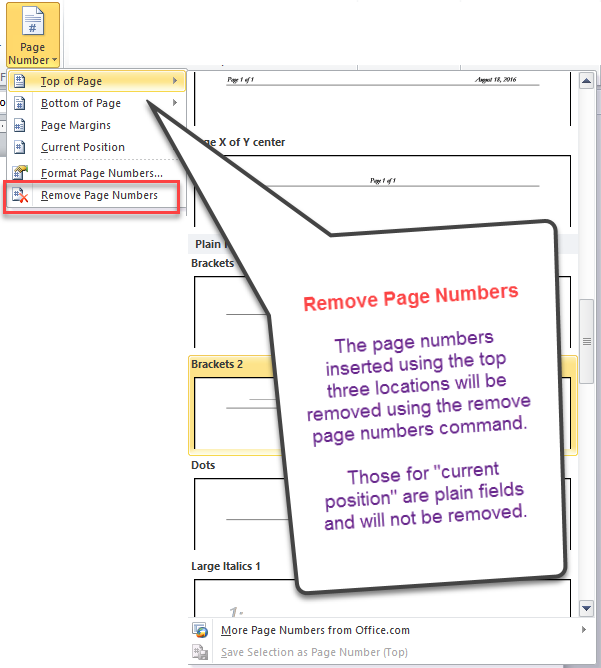
The Remove Page Numbers command under the Page Number
button is a bit flakey. It will remove all page numbers that
were inserted using the Insert at Top of Page, Bottom of
Page and Page Margin commands. These
are specially marked by Word as page numbers in some way. Those inserted manually or by "Current
Location" are not so marked and will not be
removed by this command.
Others are Page fields. { page }
Note, all page numbers are fields. The Page Numbers Inserted with locations
are also inside specially marked regions that can be removed using
the command.
To see the field codes and remove them, go into the
header/footer containing the page numbers and press
Alt+F9. Delete the field. Then press Alt+F9 to
again show field results instead of codes.
Note also, if you use the different header/footer options
so you have multiple headers in a Section, the Remove Page
Numbers command will only remove the page number in the
header/footer that applies to the current page.
|
See also
Automatic Page Numbers Across Multiple Documents
| Columns are a creature of Sections, like Headers and footers. The command
to set them up is found under the Page Layout tab.
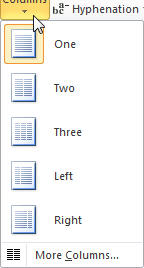
More Columns... gives you a dialog box which gives you even more
control.
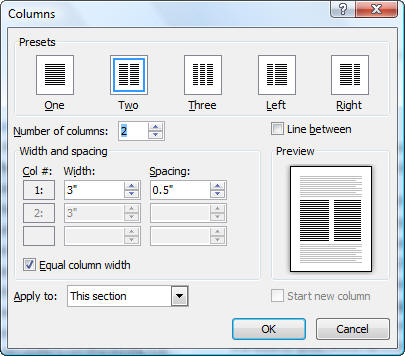
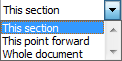 The
"Apply to:" choice of "This point forward" allows you to insert a continuous
Section break where you are and make the rest of the current
Section have
the column settings you want. The default is "This Section." Another choice
is to have the column layout apply to the entire document. The Start new
column checkbox is one way to insert a column break before the bottom of the
page. If you select the Left or Right column
preset it unchecks the Equal column width setting. Line between
inserts a vertical line between columns. The
"Apply to:" choice of "This point forward" allows you to insert a continuous
Section break where you are and make the rest of the current
Section have
the column settings you want. The default is "This Section." Another choice
is to have the column layout apply to the entire document. The Start new
column checkbox is one way to insert a column break before the bottom of the
page. If you select the Left or Right column
preset it unchecks the Equal column width setting. Line between
inserts a vertical line between columns.
You can set the number of columns to a larger number if you want. Note
though that more than 3 columns is not practical on a portrait layout
letter-size page. Unchecking the Equal column width setting lets you
manually change your column width. The spacing between columns is preset at
0.5." Adjusting this is a way to get all of your text on one page or fill
out a page.
The settings shown in the dialog box above are the default with 1
column. So, in a sense, you always have a column setting in Word.
Other ways to insert a Column Break are the keyboard
shortcut Ctrl+Shift+Enter or under Breaks on the
Page Layout tab.
Note that a column break, like a manual page
break, will be contained within a Word paragraph, so
text immediately following the break will be in the same
paragraph as that which precedes the break. If you
change the paragraph formatting, it will change for the
entire Word paragraph.
Consider whether you
actually want Word columns, though.
I've been advising people about Word for more than
twenty years. Often when people ask about columns, what
they really want is a
Table. The
appearance can be very similar but how they work is
profoundly different.
Columns in Word work like columns in a newspaper or
magazine, with the flow of text going from the bottom of
one column to the top of the next. This has been
described as "snaking."
Tables operate more like a matrix with rows and
columns. A table is good when you are trying to compare
or explain and want related parts to be next to each
other on the page.
See also:
Using Columns by Suzanne Barnhill, MVP |
Practice: Change Formatting to Columns
- Open the document with three Sections from the Header/Footer
Exercises.
- Press Ctrl+End to go to the end of the document.
- Press the ENTER after the Heading "Main Document"
- Type =rand(30, 4) and press ENTER.
- Go back to the point just under the heading.
- Under the Page Layout tab, click on the Columns button and select
the option for two columns.
- Notice that if you were in Draft view you are now in Print Layout
view.
- Notice that your heading is inside the columns.
- Press Ctrl+Z to undo the column formatting.
- Click on the Columns button and this time select "More Columns..."
to bring up the dialog box.
- Select the two column preset and under "Apply to" select "This Point
Forward."
- Click OK.
- Notice that your Heading is now outside the Column formatting. You
have just created a new (continuous) Section break.
- Try clicking the option to have three columns instead of two under
the Columns button. Note that it applies to the current Section.
- Click in the middle of the page in the middle of a paragraph.
- Reopen the Columns dialog box by selecting "More Columns..." under
the Columns button.
- Select the two column preset and under "Apply to" select "This Point
Forward."
- Click OK.
- Note that you now have a three column Section followed by a two
column Section.
- Note that the Section break was inserted in the middle of your
paragraph, even in the middle of a sentence!
The Column set up in Word is the equivalent to "Snaking columns" in
Word Perfect. To get parallel columns in Word you would use
Tables.
The size of Pages is a Section setting as well. You can find the
drop-down for this under the Layout tab (the first Layout tab if more
than one is showing).
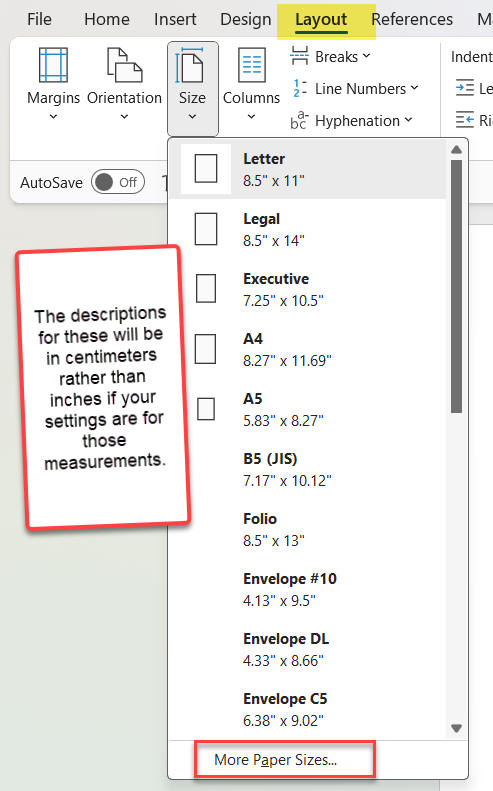
If you want this to only apply to a certain page or text, insert
section breaks before and after the area where you want it to apply and
pull up the Page Setup dialog.
In either the Mac or the Windows version you can get to this by using
the Custom Page Size... choice.
In the Windows version you can also use the dialog launcher in the
bottom right corner of the Page Setup Group.
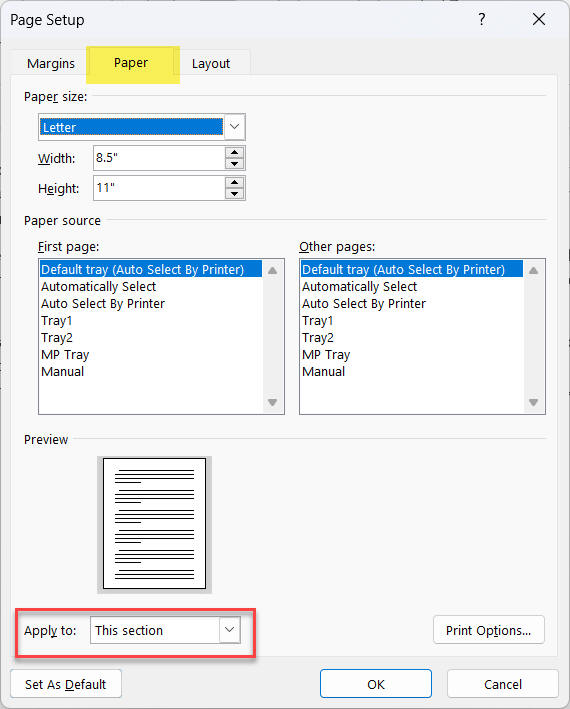
Set your size and tell Word to apply it to This Section.
Note that even if you have selected text and the Apply to: box gives you
the choice of selected text, your size setting will apply to either the
whole document or the current section.
With Margin and Column settings, this same dialog will create new
section breaks for selected text. This is not the case with page size.
Printing With Multiple Sections -
CK note
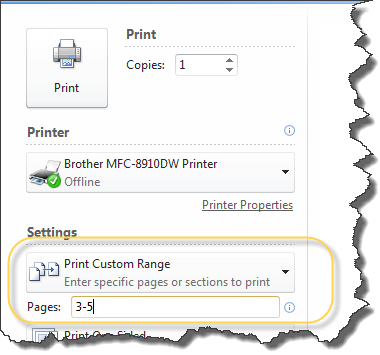
Word tracks pages for printing purposes by the page numbers assigned
by Word, itself. To print pages 3-5 you would enter 3-5. (These page
numbers may or may not be what is displayed.) Since page numbering can restart with each
Section, it
is easy to have multiple pages numbered 1 or 2, or even 10 or 30! To tell Word
which pages you want to print, you need to designate not only the page
number, but the Section number. You have to give both page and Section
for all numbers in a range.
| To print page 1 of Section 3, you would enter p1s3 |
| To print pages 1-1 and 2-2, you would enter p1s1,p2s2 |
| To print pages 1-3 in the first Section, you would enter
p1s1-p3s1 |
| To print all of Section 4, you would enter s4 |
| To print a rarge of pages across Sections, you would enter
p5s2-p3s5 |
Use your Status Bar to see what Section you are in. If it isn't
showing Sections, right-click on it.
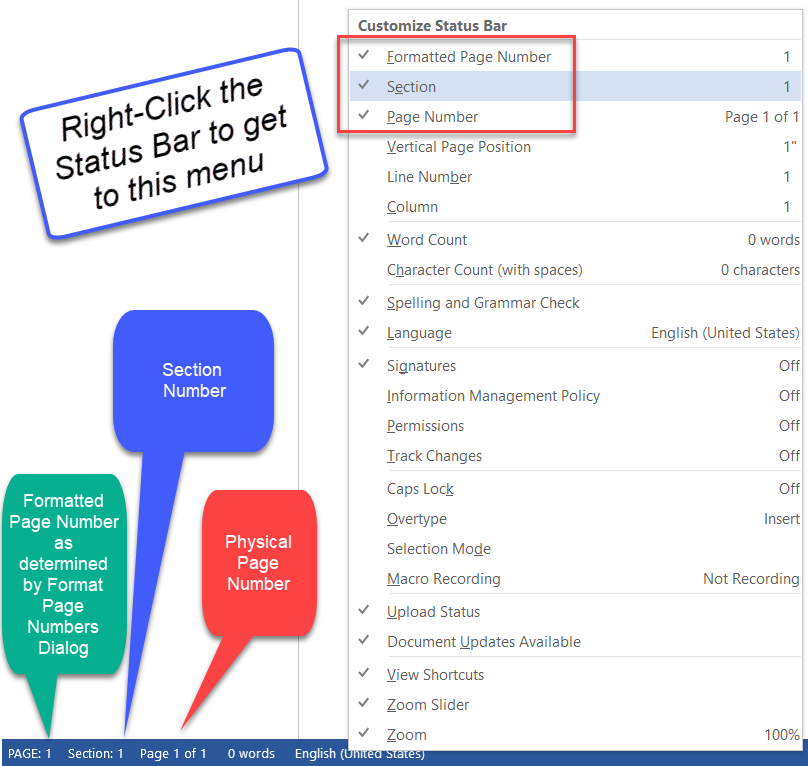
See this
MVP FAQ page or Microsoft
Help article for more.
It applies to all versions of Word starting with Word 2003 even though
it does not mention recent versions.
Page Numbering / Headers and Footers with Cover
Pages in Word 2007-2024
This is included in the Sections chapter to alert the
reader that Cover Pages can create anomalies in page numbering and
Headers and footers.
Word 2007-2024 allow you to insert a "Cover Page" in a Word document.
There can be only one Cover Page and it is always at the very beginning
of the document. This is true no matter where you are in the document
when you insert it.
The command to insert a Cover Page is on the Insert tab.
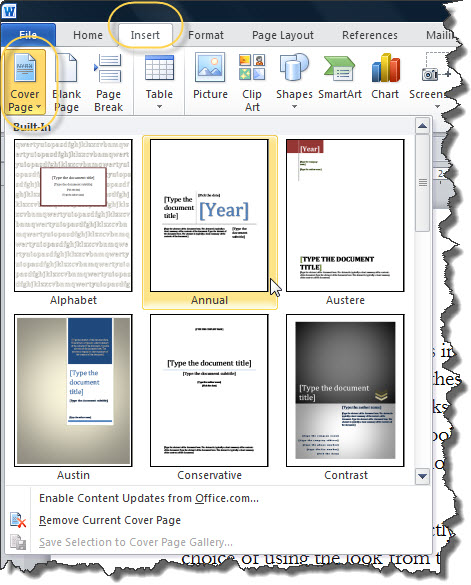
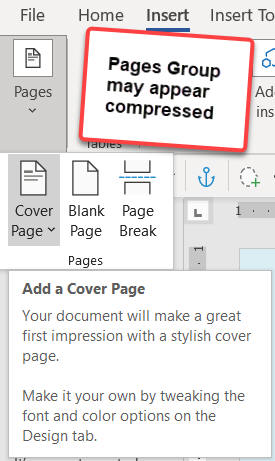
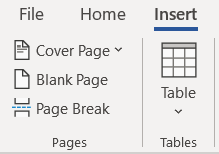
Your Pages Group on the Insert tab may be compressed into a
drop-down.
What happens to your page numbering (and
headers/footers) when you insert or remove a cover page is different
depending on the Version of Word you are using.
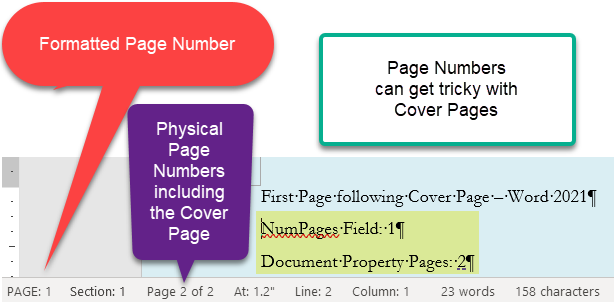
In Word 2007 the new cover page will be Page 1 of the document and
will be included in the NumPages field numbering (the "y" of the Page X
of Y structure). In later versions it is Page 0. In Word 2010 & 2016-
2024
(365), it is not
included in the total page number (NUMPAGES) field. In Word 2013
it is included in the NUMPAGES field.
Insertion of a Cover Page will make the setting for
Section 1 of the document's header/footer "different first page." If
that setting was already checked and there is already content in those
areas, it will appear on the Cover Page unless occluded by Cover Page
content. If the Cover Page is later removed, the "different first
page" setting for that section will be unchecked and any content in that
header/footer will be deleted from the document in Word 2007-2010. In
Word 2013-2024 the option is unchecked but any different-first page
header/footer content remains in the document, even though not
displayed. If you add a new cover
page/replacing this one, it is the same as removing a cover page and
then inserting one. Again, any first-page header/footer content will be
deleted in Word 2007-2010 by removal of a Cover Page.
If you have different even and odd Headers/footers, the
Header/footer displayed on the page following the Cover Page will be
that for an even numbered page in Word 2007 and this page will be
numbered "2;" in Word 2010-2024 the header/footer for the page
following the Cover Page will be for an odd-numbered page and this page will be numbered "1."
The document property "Pages" will always include the
cover page in its count, regardless of the version of Word involved. If
in a page x of y header or footer, you always need y to not count the
cover page, you should use that instead in a computation field "Page
{ Page } of { = { DocProperty Pages } -
1 }}".
Many, but not all, Cover Pages include graphics or Text
Boxes that cover up any Header or footer that would otherwise display
and print.
I recently tried creating my own Cover Page, and adding
that to the Cover Page Gallery. It works the same as the ones
distributed with Word. This was in Word 2024 but should work in version
2016 and later. When creating the Cover Page Building Block no manual
page break was included in the selection. The Cover Page Building Block
insertion
process supplies the page break.
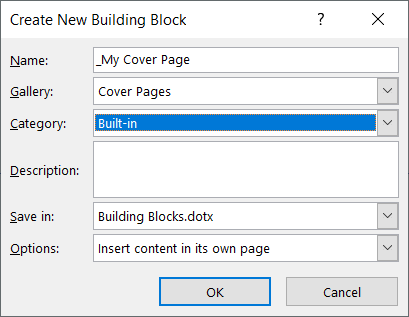
For more on doing this, please see
Where Can Building Blocks Be Stored?
See also:
Front cover images in Microsoft Word report templates by ShaunaKelly
|
Watermarks in Word 2007-2024 (CK Note)
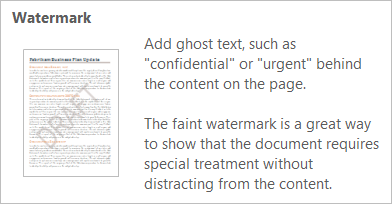 A
Watermark is an element that appears behind text and is usually
faint (semi-transparent). It is often text but may be an image. The
Watermark feature was
divorced from Backgrounds beginning with
Word 2007. Its placement on the Page Layout Tab (Word 2007-2010) or
Design Tab (Word 2013-2024/365) is intended to makes it more
accessible. It is placed in a Header. Watermarks
are stored in the
Building Blocks (which may be stored in various places including
templates). A
Watermark is an element that appears behind text and is usually
faint (semi-transparent). It is often text but may be an image. The
Watermark feature was
divorced from Backgrounds beginning with
Word 2007. Its placement on the Page Layout Tab (Word 2007-2010) or
Design Tab (Word 2013-2024/365) is intended to makes it more
accessible. It is placed in a Header. Watermarks
are stored in the
Building Blocks (which may be stored in various places including
templates).
They are discussed in this page because they are a part of a
Header and problems with Watermarks equate to problems with Headers.
(Except if no Watermarks show up in the Watermarks gallery; that is a
problem
with the building blocks file.)
A Watermark is inserted from the Design Tab (Page Layout Tab in
Word 2007-2010) - not the Insert
Tab. A Gallery should be shown when you click on the button. At the
bottom of the Gallery are other choices.
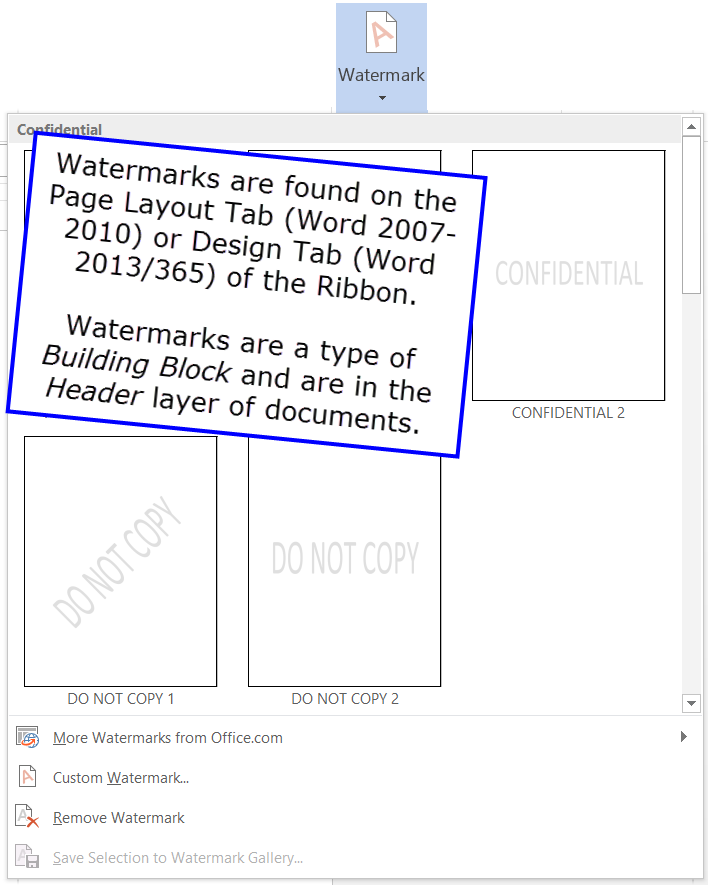
The screenshot above shows the default Watermarks gallery. You can
choose one of those four, or create your own by clicking on "Custom
Watermark." (One of my custom Watermarks is hidden by the box
above.) When you go to Custom Watermark, you get the dialog box shown below.
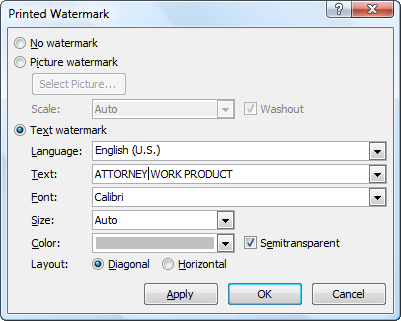
Note that you can type text or choose a picture. You can also use the
dialog box to remove a Watermark inserted by Word. If text, you can
color it, the default is Gray semi-transparent. You can have the text
shown as horizontal or semitransparent. I typed in "ATTORNEY WORK
PRODUCT" and left the default settings for diagonal gray transparent
text. The result is shown below.
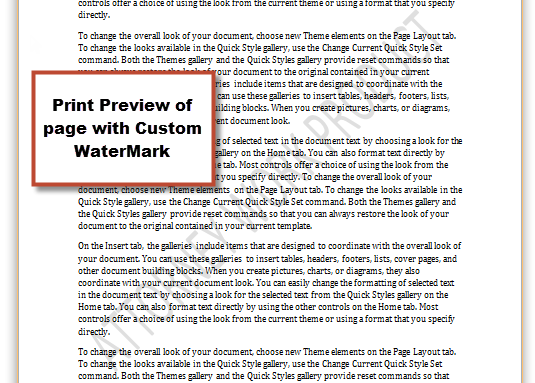
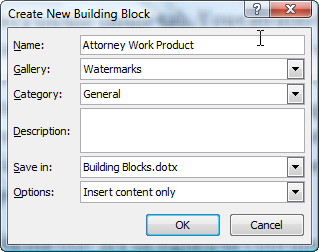
You can save a Custom Watermark in the Watermarks Building Blocks
Gallery using that Menu command. Note that you can save it in the
default building blocks file or in a template. The templates available
will include any global
templates that are currently loaded that already have at least one
Building Block as well as the attached document
template. For more, see
Where can Building Blocks be stored? My preference is to store in
a global template.
While in Word 2010-2024 there is a line on the Gallery menu for more
Watermarks from Office.com, I have not found any as of this writing
(February 12, 2026); I do not expect this to change. Again, you
can add your own Custom Watermarks to that Gallery, though.
An image or picture can also be used as a Custom Watermark. Images
can include photos, clip art, Word Art or other drawings.
See also:
Working With Watermarks - and
Insert a Watermark Microsoft Support - Made for Word 2013 and later but
good for other versions. For Word 2007 and 2010, use the Page Layout tab
rather than the Design Tab.
The font used for Custom Text Watermarks will be the font used for
the Normal style, which is usually the default
Theme body font.
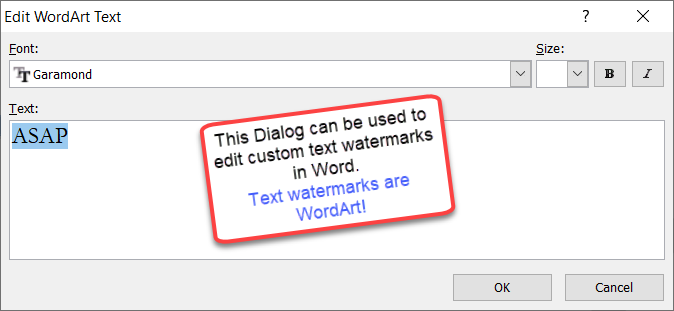
Text Watermarks are WordArt. If you edit the Header and click on one,
you can use WordArt tools to edit it. You can change the text, the font,
and the size.
If you want to change the text, use the Edit Text button. This allows
you to change both the text and the font/size.
See also:
How to Create and Save Your Own Custom Watermark by legal office
guru
Deborah Savadra (video)
Key Points:
| The Remove Watermark command (under the Watermark button, under
the Gallery) will remove all Watermarks in a document that
were inserted using the Watermark button. It will not delete
ones that Word has not marked as Watermarks (i.e. other image files
in the header). |
| If you have a complex Header setup before you insert Watermarks,
you will have a complex problem inserting or modifying Watermarks. |
| Watermarks are in Headers. That means you see a faded version of
them when editing your document, if you see them at all. They will
show up in printed versions and pdf.
They will not show up in the editing view of the browser or mobile
versions of Word, they will show up in the Reading view. |
| Watermarks added using the Watermark feature have a special tag
on the image so that the Watermark feature can
manipulate/delete/replace it. |
| Since all a Watermark is, is a semi-transparent graphic set to
be behind text in a Header, you really do not need this feature at
all. You can do the same thing yourself by editing the Header(s) in
your document. |
Problems that can arise and some work-arounds:
- If you are having a problem with Watermarks you need to
understand how Headers work
because Watermarks are in the Header. Headers are Section
properties, so Watermarks are part of Sections as well.
- Insertion of a Watermark using the Watermarks feature will
replace any existing Watermark that was inserted previously using
the Watermarks feature.
This is true regardless of how many Sections are present and whether
any header/footer options are in use and whether or not they are
linked.
- If the Headers in different Sections are not linked at the time
a Watermark is inserted, the Watermark will be inserted into only
the first Section and Sections with Headers linked to that Section.
- If there was previously a Watermark in that type of header
(primary/first-page/even-page) in a different unlinked section, the
new watermark will replace it in that section regardless of where
you are when you make the insertion.
- You will need to go into the first Section Header (edit it) and
select the Watermark image. Copy that to the Clipboard and paste it
in unlinked Headers.
- You can, though, have multiple images that look
and act like Watermarks - even in the same Headers - so long as they
are not placed there by the Watermark button in Word.
- If you want a Watermark on only one page, you must manually place
the image
behind the text in the body of the document - not in a Header or
footer if the Header or footer covers more than one page.
- You check "remove Watermark" and nothing happens or the
Watermark continues to show on some pages. This is because some of
the Watermarks you are seeing were inserted as graphics and not
directly by using the Insert Watermark button. (See above)
- You want vertical text - not Horizontal or Diagonal - or some
other variation. Use WordArt to create what you want and then either
insert it directly or save the WordArt as a picture and then insert
it using the Watermark function as a picture. (If you do the latter,
you will not be able to edit it as WordArt in Word.)
Inserting a Watermark on only the first
page of a multi-page document (or on every page except the first page)
- Remember, Watermarks are images that are in Headers. If you use
the different first page setting for your Header before you
insert the Watermark, it will appear only in the Header used for the
page on which you insert the Watermark.
- That is, if you use the Insert Watermark command when you are on
the first page, that Watermark will appear only on the
first page of
that multi-page document. Again, the different first page setting
must be in effect at that time.
- If you are on any other page than the first page, it will appear
on all pages except the first page.
- If after you insert the Watermark, you switch on the different
first page setting, the Watermark will disappear from your first
page!
It will appear on all following pages in that Section.
- If you have multiple Sections in the document, be aware of the
link to previous setting for each Header in each Section
(remember,
every Section has settings for three different Headers, whether they
are displayed or not).
Inserting Watermarks on
even or odd pages.
- Remember, Watermarks are images that are in Headers. If you use
the different odd and even setting for your Header before you
insert the Watermark, it will appear only in the Header used for the
page on which you insert the Watermark.
- That is, if you use the Insert Watermark command when you are on
an even-numbered page, that Watermark will appear
only on the
even-numbered pages of
that multi-page document. Again, the different first page setting
must be in effect at that time.
- If, having a Watermark inserted using the Insert Watermark
feature appearing only on odd-numbered pages, you then use the
feature to insert one on even-numbered pages, the one on the
odd-numbered pages will disappear!
- If after you insert the Watermark, you switch on the different
even and odd page setting, the Watermark will disappear from your
odd-numbered
page! It will appear on all even-numbered pages in that Section.
- If you have multiple Sections in the document, be aware of the
link to previous setting for each Header in each Section
(remember,
every Section has settings for three different Headers, whether they
are displayed or not).
- If you copy the image in a Watermark on your odd-numbered pages,
then insert one on your even-numbered pages, the odd-numbered one
disappears. You can go to the odd-page header and paste the copied
Watermark in that header. But, see below.
- You cannot do this using the Watermark feature alone.
- You can do it by copying a Watermark image (while editing the
header in which it appears) and copying it to a different header.
- If you do this and later insert a Watermark anywhere in the
document using the Watermark feature, all other ones will disappear.
If you do this and use the Remove Watermark command, all Watermarks
created by the Watermark feature, including the pasted ones, will
disappear.
- You can do it by using any other image (one created by WordArt
or another picture) and putting that in the applicable header.
If you do this, it will not be manipulated using the Watermark
feature. You will need to manipulate it manually.
You will probably want to change the transparency or fade it.
- I recommend that if you want multiple Watermarks or want them
when using the Different-First-Page or Different-Even-and-Odd
options,
that
you use the method of pasting graphics into those headers.
- Likewise, if you want different Watermarks in different
sections, I recommend you use the graphics method, not the Watermark
tool.
- See Watermark
Anomalies Demonstration
Multiple Watermarks - a different method, of sorts
- Remember that Watermarks are images in the Header
- You can insert one Watermark and change its name for Word, so it
does not think of it as a Watermark. (thank you
Jay Freedman)
- Insert the first Watermark using the Watermark insertion tools
in Word.
- On the Home tab, click Select > Selection Pane.
- The watermark will be listed in the pane as "PowerPlusWaterMarkObject"
(for a text object) or "WordPictureWaterMark" (for a picture object)
followed by a large random number.
- Click that name twice to make it editable, and change it to
anything else -- then Word won't recognize it as a watermark.
Note, you cannot use Delete Watermark on this now.
- Now you can add another Watermark on a different page using the
Watermark feature.
Preventing a Watermark from being deleted
Realistically speaking you cannot. There are, however, steps you
can take.
If you want a watermark that can't be removed, send a
piece of paper with a genuine watermark.
Sorry.
| Rule #1: If they can see it, they can copy it.
|
| Rule #2: If they can copy it, they can modify it. |
I expand on these in the my page:
No Copies - No Editing
Send as pdf and it will be harder to remove than than in
Word format.
Convert it somehow to a jpg and it becomes even more difficult. You
can print and use a scanner to do this. You could, then, insert that
jpg into a Word file.
That said, there are some things that you can do
in Word.
Watermarks in Word are dimmed images in the header or footer.
They have a "watermark" tag on them so that they can be manipulated
using the Watermark feature.
You can create your own non-Word watermark by inserting your own
image in a header or footer. Then it can't be minapulated using the
Watermark commands.
You can create a watermark in Word, then copy the image to the
clipboard and delete the watermark using the watermark command. Then
re-insert the image (in the header).
You can protect the document for filling in forms or otherwise
restrict editing, there are ways around these, though.
One of the best ways I've seen proposed is to put the watermark
in a picture-picker Content Control and then set the properties of
that Content Control to not allow deletion or editing.
You can use a macro to limit
access to the header. However, that only works if the
recipient allows macros to run. Most do not.
See:
Can't delete the Watermark
If you can't delete a watermark, it was not inserted using the
insert Watermark feature and is an older style Watermark which is an
image (possibly words in a textbox) in the header.
It is also possible that this is in the footer, although that is
far less likely.
You can select the image (textbox) and delete it.
See also:
The Watermark that will not die! by legal office guru Deborah Savadra
Problem: There are no options in the Gallery when I click on the
Watermark button
There are no options for different stock Watermarks when you press
the Watermark button. What it says
is just More Watermarks from office.com and save selection as
Watermark.
Watermarks are stored as building blocks. Sometimes
this file can become corrupted.
Here is how to handle it. The solution is a little different
depending on your Word version.
Problem: Watermark does not appear on all pages.
Watermarks are a creature of Headers. If you have multiple Headers
previous ones may be blocking your Watermark.
- Go into the Header on the page where the Watermark appears.
- Click on the Watermark image to select it.
- Copy it.
- Go to the Header on a page missing the Watermark.
- Paste and position it.
- Repeat 4 and 5 as needed.
Problem: I want a Watermark on only one page
Remember, Watermarks are a creature of Headers.
If you want your Watermark to appear only on one page there are
several ways you can do this. First, you could make a one-page Section
with the Watermark and make sure that Headers in other Sections are not
linked to that one.
Probably simpler, is to cut the Watermark (it is a graphic of some
sort, perhaps WordArt) from the Header and then paste it behind the text
on the page where your want it instead of in the Header.
Probem: I can't get rid of a Watermark!
When you use the Remove Watermark command under the Watermark button,
it will delete all Watermarks in a document that were inserted using
that button.
If the Remove Watermark command does not remove a Watermark...
- Go to the page where the Watermark appears.
- Enter the Header for editing.
- Click on the Watermark to select it.
- Press the Delete key.
Problem: Watermark Does Not Show Up in Print View (but does print)
Watermarks inserted by Word are image files. If they are text, they
are WordArt or in a Text Box. Word treats them as images.
There is a setting in Word dating back to Word 95, at least, that
lets you not show images on the screen. This speeds up display and was
more important in the past than it perhaps is now.
Check this Option setting. Here is the dialog box from Word 2013:
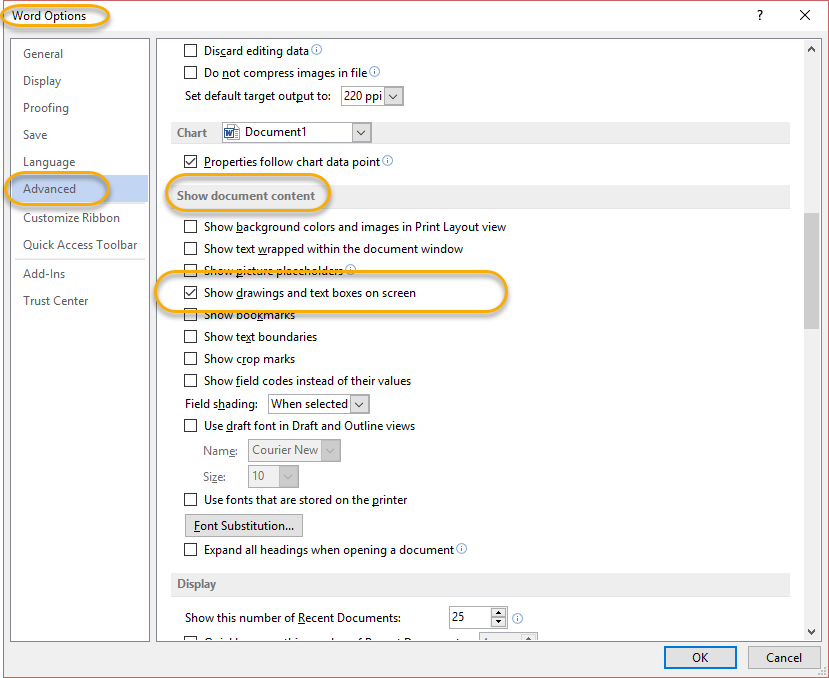
Page Margins are Section properties. They are set in the Page Layout
dialog. To change the indents of one or more paragraphs, the paragraph
formatting for left and right indents should be set, not the page
margins.
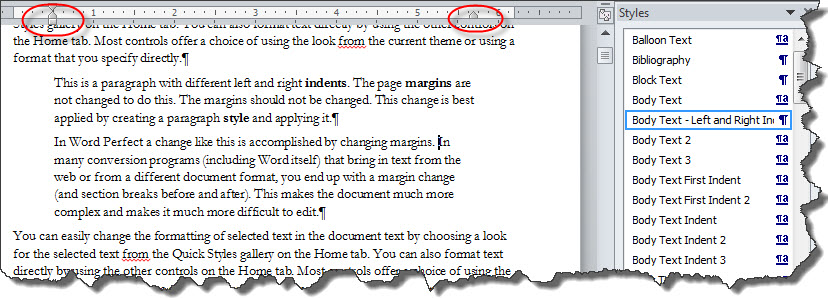
One feature allowed for margins is mirror margins. This is intended
to work with different even-and-odd Headers/footers. It allows for a
binding area in documents printed duplex. However, it does not work in
Landscape Sections if what is desired is to have the binding edge along
the long side of the paper. That would require mirroring of top and
bottom margins.
A workaround is described in
Mirrored Margins in
Landscape Pages in Microsoft Word.
Gutters in Word are set for binding on the left edge of text, even
though when using right-to-left text the gutter should be on the right,
there is no setting for this.
Use mirrored margins instead. A workaround is described here:
Shifting Gutter Position to Right Using Shapes in the Headers or
Mirrored Margins -
Answers page
More on margins to follow.
Page Borders can be Section Properties and
set for different first page
Page Borders are accessed through the Borders and Shading Dialog Box.
Page Layout Tab (Word 2007-2010) / Design Tab (Word 2013+) > Page
Borders
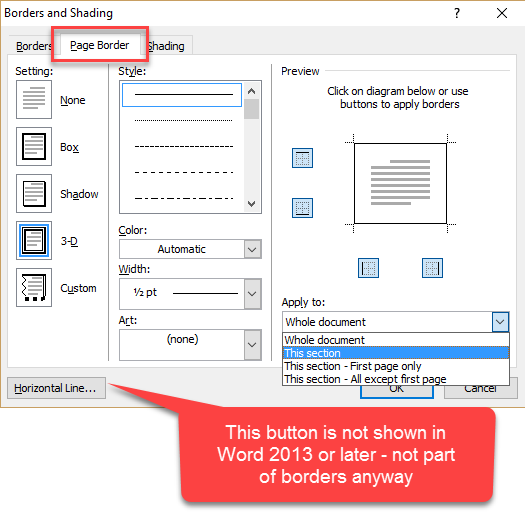
As you can see in the screenshot above, you can apply the page border
to the entire document, to the current Section, or to either the first
page of the section or every page except the first page of the
section.
You can have Word tell you which section you are in.
In which section is the insertion point?
A page can have multiple sections. The insertion point is where
the next letter you type will go.
The status bar at the bottom of the page can reflect the Section
in which the insertion point is found.
If this is not showing in your Status Bar, right click on it and
check Section.
In which section is the page?
You can use the
Section Field to give you the section number. This is similar to
the Page Field.
This can be used in a header or footer.
If there is a continuous section break on the page, it will give
you the section in which the definition of the footer is found.
Trouble Shooting Sections, Headers and Footers,
Page Numbering
Missing Page Number / Header / Footer / Watermark Commands - greyed out -
Charles Kenyon
Why is the spacing off in the footer of a landscape page?
- Check first to see if there are Section breaks setting off the
landscape page.
- Even though the footer will look the "Link to Previous," that option
must be turned off.
- After turning it off, move the center tab to 5.5 inches and the
right tab to 10 inches.
- Continue to the following Section and, again, turn off "Link to
Previous."
The page number was formatted to show A, B, C. It's not appearing in
the footer.
Although the number was formatted correctly, it was not inserted. First
format the number to get what is needed; then insert the number in the
footer.
I can't see the Headers and footers.
If you are in Draft View, go to the Insert tab and Click on Header or
Footer to Edit. If you switch to Print Layout View, double-click in the
Header or footer and the Header & Footer Tools will be accessible.
The Section break doesn't allow me to have both portrait and
landscape text on the same page.
Unfortunately, Word will not allow this by the use of a Section break.
To achieve the desired effect, you must insert a text box.
I have the codes for Page 1 of 3 (x of y) in my Header/footer. It is
different on the screen from when it prints out. Or, I get Page 1 of 1,
Page 2 of 2, Page 3 of 3, etc.
Unfortunately this feature doesn't work very well. There are a number
of reasons for this, including background printing and the timing of field
updates. The best work-around that I have heard of is to use a
Cross-Reference for the "Y" of Page X of Y. Put a bookmark on
the last page of your document - at the very end - and use Insert |
Cross-Reference to insert the page number on which that bookmark may be
found. Other things to do include:
- Turn off background printing.
- Turn off display of hidden text if you have any in your document.
- View the document in Print Preview (Page Preview) mode including the
last page of the document to force an update of the fields.
For more on this see:
http://www.addbalance.com/word/pagexofy.htm.
For more on bookmarks and cross-references see
Complex Legal Documents.
My Insert Header / Footer menu doesn't give me any options.
There are no options for different Headers / footers. What it says
is just More Headers / footers from office.com and save selection as
Header / footer.
Header and footer options are stored as building blocks. Sometimes
this file can become corrupted.
Here is how to handle it. The solution is a little different
depending on your Word version.
I set my document for a "Different First Page" but that
first-page Header/footer
is showing up on pages in the middle of my document.
Or, I have "Different First Page" set so I don't have a
Header/footer on
the first page but all of my pages or a lot of my pages besides the first
page have no Header/footer.
Do you have Section breaks? Each Section has its own first page.
The settings for Headers/footers are separate for each Section but are
often linked so that the Header/footer in the first Section is continued
throughout the document.
Actually, each Section can have up to three different Headers
(and three different footers), which is the case if you have selected
"Different odd and even" and "Different first page" (also on the
Header
& Footer Tools Design tab). When you have multiple Headers (footers),
each type must be separately unlinked from its "neighbor" in the
preceding Section. This gets especially complex when you have multiple
Sections on one page. (Thanks to
Stefan Blom, MVP for putting this concept so well.)
My document has numerous
Sections. How did they get
there?
Word can insert Sections without notice whenever you:
| Change Margins (not Indents, Margins) |
| Change the Page Numbering |
| Change Page Orientation |
| Change Column Arrangement |
Another way to end up with a lot of Sections is by working with a
converted document (i.e. Word
Perfect, pdf, OpenOffice, Scanned Text) or text copied from a
converted document or from a Web page. The conversion software aims
to make a document in Word that looks like the original. However,
there is no conversion software that handles Section formatting at
all well, as far as I know as of July 1, 2014. This includes
documents that started as Word documents, were converted to pdf, and
then converted back. The conversion software can make every change
or even apparent change in paragraph indents as a margin change. You
can end up with a three-page document with fifty Sections!
If you want to edit such text, you are often far ahead by simply
copying as plain text and doing your formatting using Styles to
duplicate the original formatting.
Missing Sections - Ghost Headers
and footers - Page Number mysteriously restarts
"Alright, so I have this problem and it's been driving me
absolutely INSANE for the past couple hours. I want to add page
numbers but for some reason, it re-starts from 1 in the middle of
the document."
"I get strange Headers/footers popping up in the middle of my
document."
"I have a different Header/footer in the middle of my document."
(Duplicates the First-Page Header/footer from earlier in the
document, but this is not the first page!)
These complaints all have to do with there being a Section break
in your document, usually just before the problem. You can improve
your ability to deal with these by
displaying non-printing formatting characters in your document.
However, sometimes a Section break will be concealed at the end of a
line in Print View.
It also can be helpful to try editing in Draft View.
If all else fails, you can set page numbering continuous
throughout the document and then restart it as needed.
Continuous Page Numbering Add-In
Every Section has its own first page. Every Section has three
Headers/footers coded in even if you do not see any of them: First
Page, Odd Page, Even Page. These can be continued in a subsequent
Section. The setting for "Different First Page" is a
Section
setting. The setting for "Different Even and Odd" is a document
setting.
A single page can have three Sections (or more) with the
Headers/footers set in the middle Section not displaying at all but
perhaps showing up in a linked Section that follows. Sometimes it
helps to temporarily insert a couple of page breaks in the middle of
a Section to display the Headers/footers for that Section.
See What happens when you start a new
Section?
See Header/Footer
settings recap.
This tool can help you figure out what is happening:
Word Toolkit for Advanced Management of Headers and Footers
I know I can have a different Header/footer on the first page
of my document / Section. Can I have a different one on the last
page?
Yes, but it takes some work with fields. This is beyond the
scope of this article but involves using an IF field to test if the page
is the last page of the document or Section and give a different result
depending on the answer. See the
Fields article to see an
example.
My Insert Page Number menu doesn't give me any options.
There are no options for different page numbers. What it says is
just More page numbers from office.com and save selection as page
number.
Page number options are stored as building blocks. Sometimes this
file can become corrupted.
Here is how to handle it. The solution is a little different
depending on your Word version.
I made a change in my Section 2 Header / Footer and the Section 1
Header / Footer changed too.
You need to
unlink the
Header / footer. First, though, Copy your new
contents to the Clipboard. Then press Ctrl+Z until it is back to
what it looked like before you made the changes. Then unlink the
Header / footer and Paste your changes back. Remember, each
Header/Footer's linked state is
independent of all others.
The default setting is to have them linked.
The first page is 2 even though I have the document set to start
page numbering at 1. There is only one section. If I start page
numbering at 0, the first page is 0.
 (Status bar showing page 2 as first page of document.)
The section start is set for an even page. This is controlled on
the Layout tab of the Page Setup Dialog.
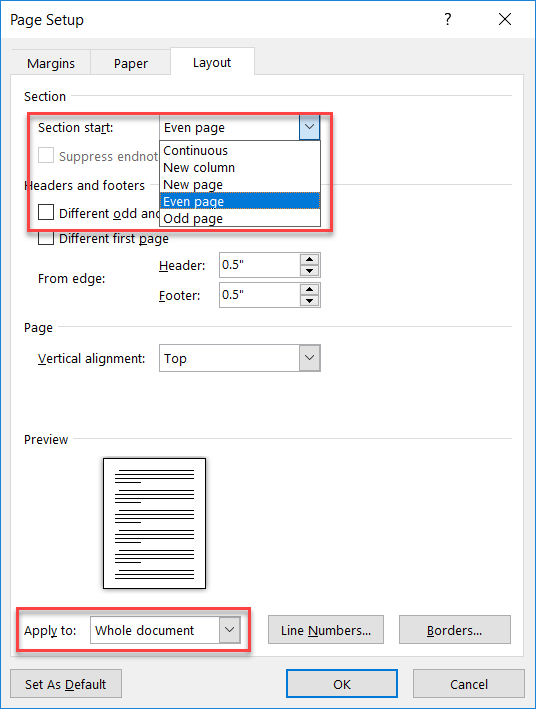
Again, the easiest way to get to this dialog is to double-click
in the horizontal ruler.
I added a next-page Section break to my document. It should have
been a continuous Section break instead.
The way to handle this is through the Page Layout Dialog. The
simplest way to access this is by double-clicking on the Ruler. It
can also be accessed through the Page Layout tab's dialog box
dropdown. On the Layout tab is a dropdown that lets you change the
type of the current Section.
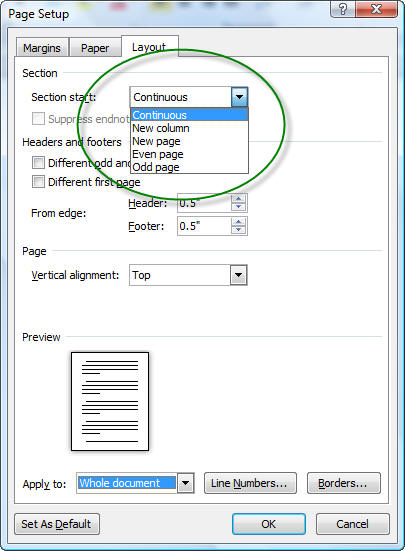
The first page is 2 even though I have the document set to start
page numbering at 1. There is only one section. If I start page
numbering at 0, the first page is 0.
(Status bar showing page 2 as first page of document.)
The section start is set for an even page. This is controlled on
the Layout tab of the Page Setup Dialog.
Again, the easiest way to get to this dialog is to double-click
in the horizontal ruler. See Even Page section break.
This becomes a problem mostly at the end of a document where
there is a blank page that the user does not want. It is caused
by making a change in Section settings like margins, or
orientation to selected text. Changes to these settings
for selected text require insertion of a next-page Section break
because these settings can't apply to less than a page.
Word will not let you delete this section break if the
settings are different before and after the section break.
The way to fix this is to make these settings the same before
and after the break.
Click in the document so your insertion point is before the section break:
- Record a macro in which you visit each of the page
layout dialogs
- the margin dialog,
- the page size dialog,
- the Columns dialog,
- and the orientation dialog.
- OK out of each dialog box.
- End recording of your macro.
Then move your insertion point beyond the section
break and run the macro you just recorded.
Convert the next-page section break to a continuous break
(above) or insert a continuous section break before the
next-page section break to preserve headers and footers.
Then if you inserted a continuous break, select and
delete the next-page section break.
Paul Edstein, MVP (macropod) posted a
macro here to merge sections so that a section break can be
deleted without changing formatting. I believe it does the steps
outlined above. Although posted in 2011, it should work in all
versions of Word; it works in Word 2024/365.


The status bar can tell you which Section you are in. Note
that the default status bar shown above does not! This is
also true in Word 2010-2024/365.
To get what you want displayed you need to right-click on the
status bar. You will then be able to add/delete things from it.
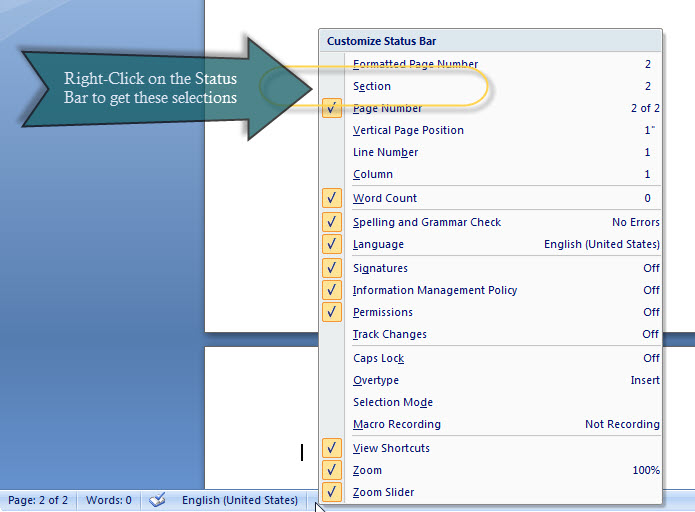
After checking "Section" you would see the following:
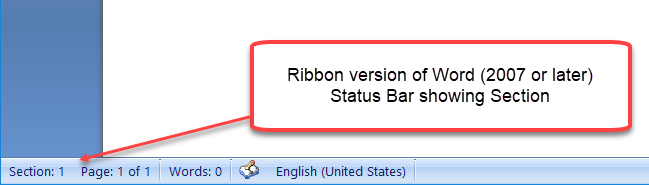
For anyone having trouble with this and using Word 2010 or later, I strongly recommend downloading
the
Word Toolkit for Advanced Management of Headers and Footers from
Lene Fredborg's site.
It was developed by Shauna Kelly and implemented by other Word MVPs and
gives access to the following tool:
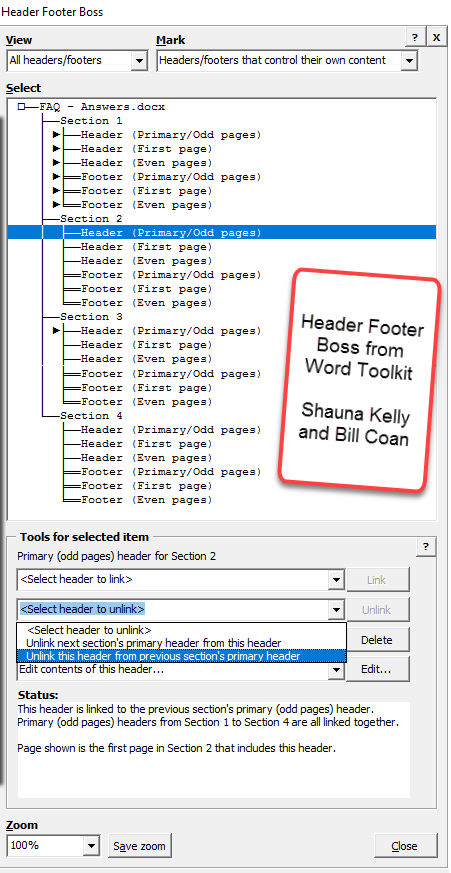
| This is confusing. This is because it really is complex
to allow users the flexibility they need. If you don't need
that complexity, probably you will never see it.
|
| To understand what is happening in headers and footers
you need to know about Sections and Section breaks. Header
and footer coding is stored in the Section break that
follows the Section.
|
| You probably want to turn on display of non-printing
formatting marks or work in normal or draft view so you can
see Section breaks. Show
non-printing characters.
|
| Section breaks do not always start a new page.
Section breaks may be inserted by Word without notice when you
change columns, margins, page numbering, or page orientation within a
document.
|
|
There are four kinds of Section breaks; the most
common are continuous and new page. The other two start a
new Section on either an even-numbered or an odd-numbered
page. The blank page that can be generated by such a
Section break will not have Headers or footers; it will be a
blank page. If you need Headers/footers on these pages,
Microsoft recommends insertion of a manual page break
immediately before the Section break to force a blank page
with Headers/footers. Otherwise, see John McGhie's article:
Create a non-blank, even-numbered page at the end of a
chapter
|
| Manual page breaks do not change Header/footer settings.
New-page Section breaks can, as can continuous (no new page)
Section breaks. (All Section breaks carry Header/footer
settings.)
|
| Every Section will have three different Headers and
three different footers even if you never see them.
Because of this, and because there can be multiple Sections
on a single page, it may be easiest to temporarily expand
each Section to at least three pages (to see the First-Page,
Even-Page, and Odd-Page Headers and footers. This way you
can see what is in each Header/footer and what the settings
are. You can temporarily expand the number of pages using
manual page breaks (Ctrl+Enter)
|
| Section formatting is contained in the Section break
that follows the Section. If you delete all Section
breaks you can find in a document your formatting will be
contained in the last paragraph mark in the document, which
is the last Section break.
|
| If there is a Section break on a page, changes to the
Header/footer that follow that Section break may not have
any effect on the Header for the page that contains the
Section break. (Those settings or changes are stored in the
next Section break, the one governing that Section.)
Whether changes to the next header change the previous one
depend on the Link-to-previous setting of the next header.
|
| If you have a Section break on a page, the header and
footer for that page will be governed by the settings for
the first Section on that page, even if that Section
contains no text (i.e., the page starts with a Section
break).
|
| The Link-to-previous setting is specific to the
type of Header/footer: Primary Header, First-Page Header,
and Even-Page Header, Primary Footer, First-Page Footer,
Even-Page Footer. Link to previous is the default
setting.
|
| Link to previous is specific to Headers and footers (can
be different). It is also specific to each type of
Header/footer. That is, the first-page Header can be linked
to previous but not the first-page footer and not the
even-page Header. The Link-to-previous setting can be set
for each Header/footer in every Section after the first.
This setting can be different in each type of Header /
footer in each Section.
|
| Since each Section has three different Headers and three
different footers and the link to previous setting is
specific to the type of Header or footer, each Section
can have up to six different link-to-previous settings.
This is true even if the Header/footer to which it applies
is not visible. This is true even if the Section involved is
a continuous Section in the middle of a page and has no
Headers or footers displayed.
|
| The different-first-page setting covers both
Headers and footers and is a Section (not document) setting.
This setting is carried over into a new Section started from
a Section set for different-first-page.
|
| Different odd and even covers both Headers and
footers and is a document (not Section) setting. Enabling
this for the first time renames each "header" into the
"odd-page header" and each "footer" into the "odd-page
footer." The even-page headers and footers will now be
displayed. They will normally be blank and you will have to
add content.
|
| Each Section can have different settings for the
distance from the edge of the page for the Sections
Headers and footers. The default is .5 inches.
|
| Size: The page layout settings reserve room for
headers and footers. Even if there is no header or footer,
that reserved space will not be filled by the body text.
However, if you put more in a header or footer than the
space reserved, the body text will not overwrite it. The
header or footer will be allowed that space. This includes
space-after or space-before formatting of the line closest
to the body text.
|
| Copying and pasting content: Since the three
headers and three footers in a Section are independent of
one another it is often easiest to copy from one and paste
in another if you want to have the same content. I.e. you
want your first-page footer to be the same as the odd-page
footer. If you do this, turn on
display of non-printing formatting marks and delete the
extra paragraph mark after you paste.
|
| See also:
Quick Reference Card for Headers, Footers and Page Numbers
|
| See also:
Using
Headers and Footers by Suzanne Barnhill, MVP - excellent and
comprehensive web page
|
| For anyone having trouble with this, I recommend downloading the
Word Toolkit for Advanced Management of Headers and Footers
from Lene Fredborg's site. It was developed by Shauna Kelly
and implemented by other Word MVPs especially Bill Coan. |
|
What Happens When You Start a New Section?
What Gets Carried Over?
When you start a new Section, that Section will carry certain
attributes from the preceding Section. This is true even if you started
the new Section by changing columns, orientation, or margins.
| Headers and footers will be linked to the previous Section's
headers and footers. You can unlink them if you want. |
| If page numbering restarted in the existing Section, it will
restart in the new Section except when the section break is a
continuous section. The formatting of the page numbering
will also be copied into the new Section. |
| Line numbering will continue. |
| If you had a header or footer set to be different first
page, that will be the setting in the new Section. |
|
Troubleshooting Watermarks
See also
Troubleshooting
Sections and
Working
with Sections
This chapter from original Legal Users Guide to Microsoft Word 2002 -
document in zip format
|
 since 28 August 2001
 Copyright 2000, Microsoft Corporation. Copyright 2000, Microsoft Corporation.
Copyright 2000-2002, 2004-2006, 2010-2026
Charles
Kyle Kenyon
See information about copy permission.
Search Intermediate Users Guide to Microsoft Word Using Google My office page as a
Madison,
Wisconsin Criminal Defense Lawyer.
Original Legal Users Guide to Microsoft Word 2002 - Documents in Zip Format
A note about link exchanges. This site does not participate in
link exchanges to build web presence. If you have a link that you think would be
of use to people reading this page, please send it to the webmaster with the url
of the page where you think it should appear and it will be considered. Your
placing a link to this site will not affect the decision on whether to add your
link, though.
|